Manage your profile
Updated September 2026
Your profile lives in Account Settings: open the account dropdown (person icon, top right) and choose Account Settings, or click Settings in the Account panel on Home.
Changes aren't saved as you type. Once you edit something, Save and Cancel buttons appear at the top of the page; click Save when you're done.
Personal information
- Name: your own name. It won't appear publicly unless you enable it elsewhere.
- Email Address: the address you log in with. If you change it, Afterify sends a verification email to the new address; the field shows its verification state, and a Resend Validation link appears if the email hasn't been verified yet.
- Change Password: enter a new password, then confirm it in the Confirm Changed Password field that appears. For security you may be asked to re-enter your current password when saving.
- Two-Factor Authentication: covered in Two-factor authentication.
- Timezone: used for dates shown throughout the app, like invoice and activity timestamps.
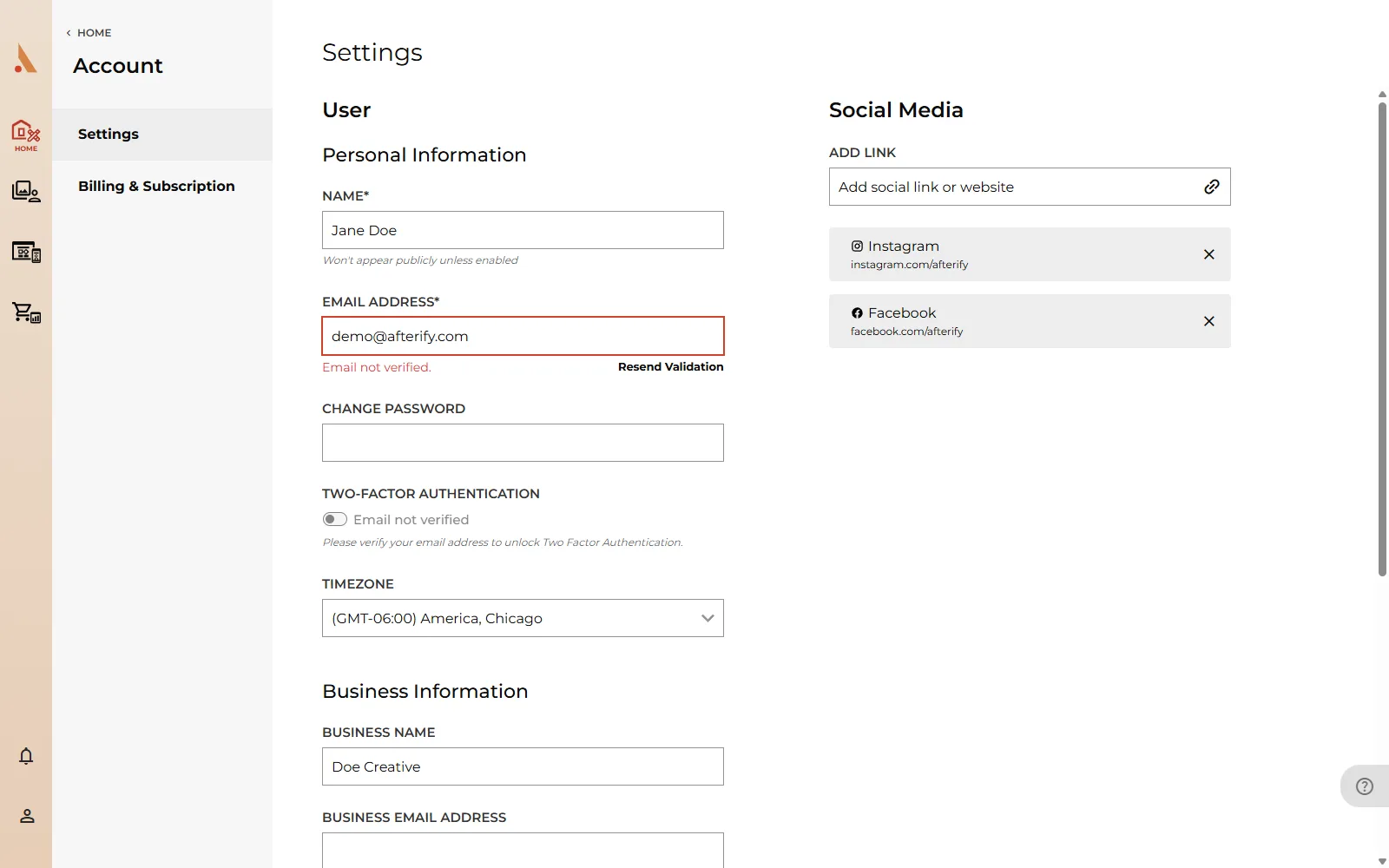
Signed up with Apple or Google? The email and password fields don't appear, since your sign-in is managed by that provider.
Business information
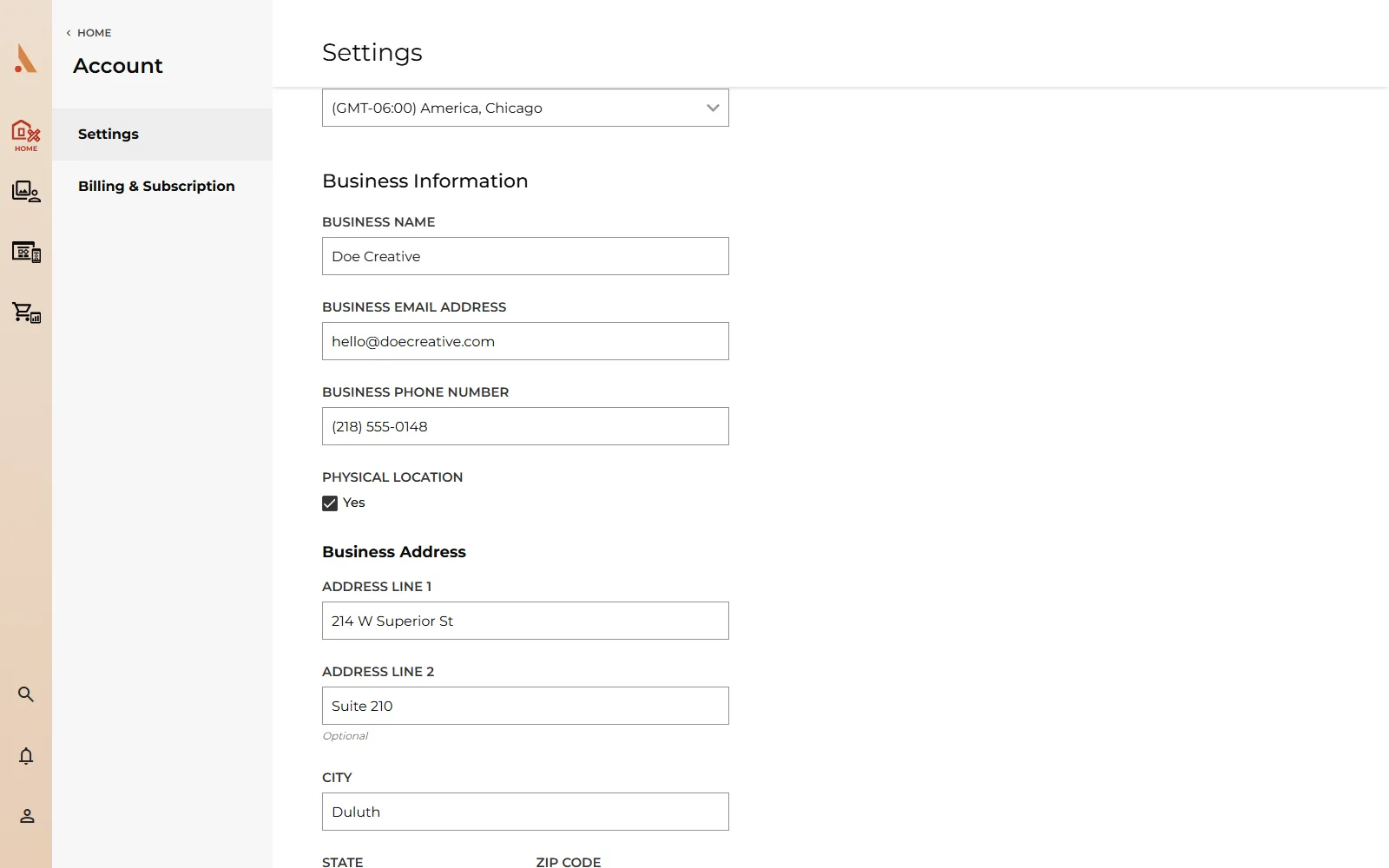
This is the business identity your clients see:
- Business Name: also your account name and the text logo on your website. Business names must be unique across Afterify.
- Business Email Address and Business Phone Number: contact details for your business.
- Physical Location: switch this on to add a business address (two address lines, city, state and zip code).
Social media links
Add links to your profiles in the Social Media section: paste a URL into Add Link and press Enter. Facebook, Instagram, LinkedIn, Pinterest and X are recognized with their own icons; anything else is saved as a website link. These links can be displayed on your website via social blocks. See Button, form, map and social blocks.
Trouble with your account
At the bottom of the page:
- Get Support: opens the Afterify help site.
- Account Deletion: starts the account deletion flow. This permanently removes your account, so read the confirmation carefully; if you're only trying to stop paying, downgrading to Free keeps your content.
Related
Still stuck?
We're happy to help. Contact support and we'll get back to you as soon as we can.