Brand settings
Updated September 2026
Your brand settings live under Home → Brand, split across two pages: Style guide (colors, typography, buttons and forms) and Logo (text logo, image logo and favicon). Together they control how your public website looks, and your logo also brands your Studio dashboard.
Editing the style guide and uploading a logo or favicon are paid-plan features. On the Free plan the Style Guide page shows a Premium lock and an Upgrade your plan button in place of Publish.
The style guide
Open Home, then click Style guide in the Brand panel. The page lists every style your website uses; click one to edit it in the panel on the right.
- Typography: Heading One (H1) through Heading Five (H5), Paragraph (P) and Caption. For each you can set the Font, Style (Light, Regular, Medium, Bold), Size, Line Height and Color. Type into the preview area to see your own text in the selected style.
- Swatches: five brand Colors and three Gradients. Gradients can be Linear or Radial; drag the rotation knob or focal point in the preview to adjust them.
- Buttons: primary, secondary and tertiary button styles, covering text font, size, color, background, border and rounding.
- Forms: labels, field text, backgrounds and borders for form fields, checkboxes and radios.
Changes queue up as you work. The counter next to the heading shows how many styles you've touched, and you can open it to discard individual changes. When you're happy, click Publish to save everything to your live site, or Cancel to reset.
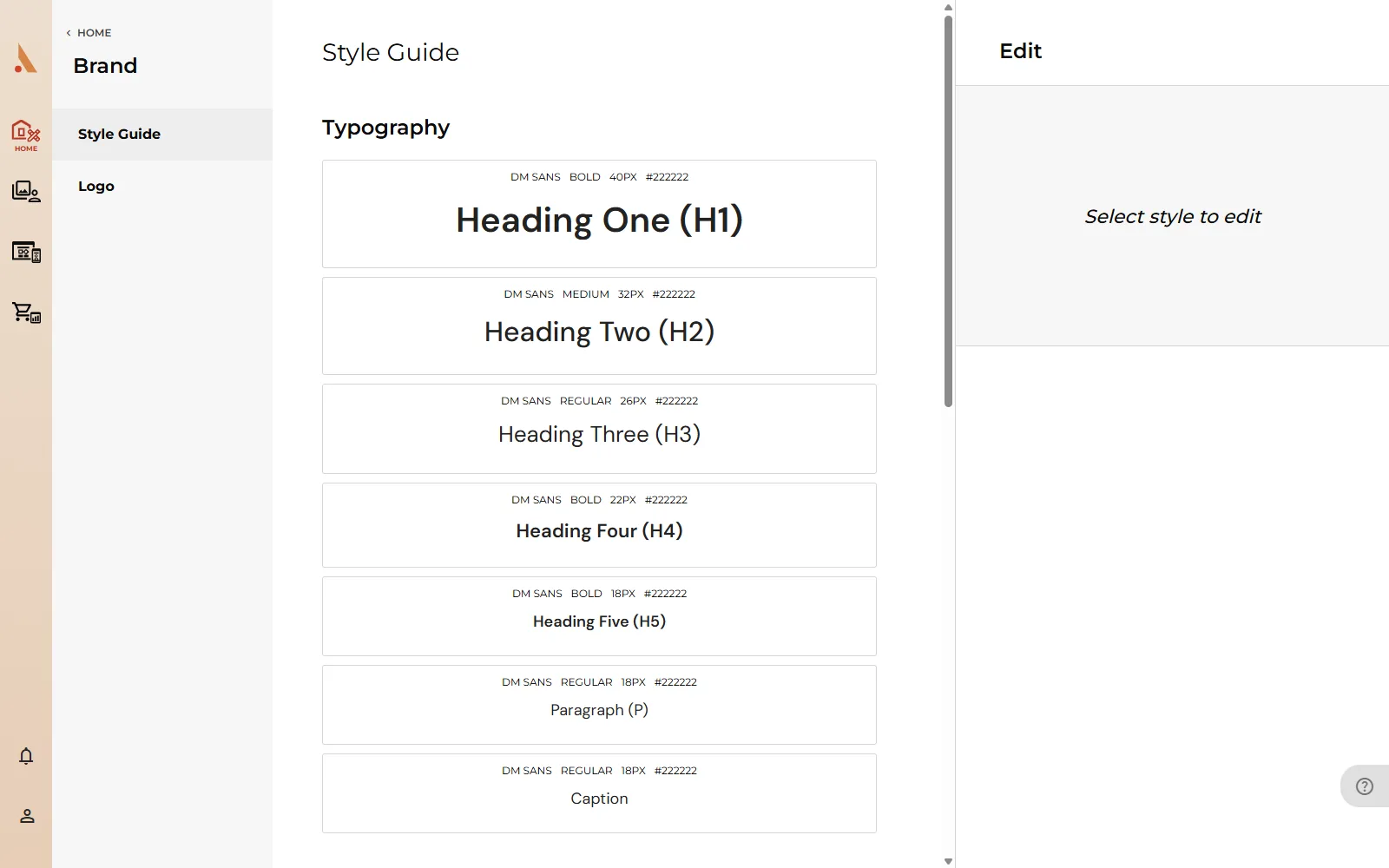
Use the light/dark/color background switcher above the preview to check your styles against different backgrounds before publishing.
Logo
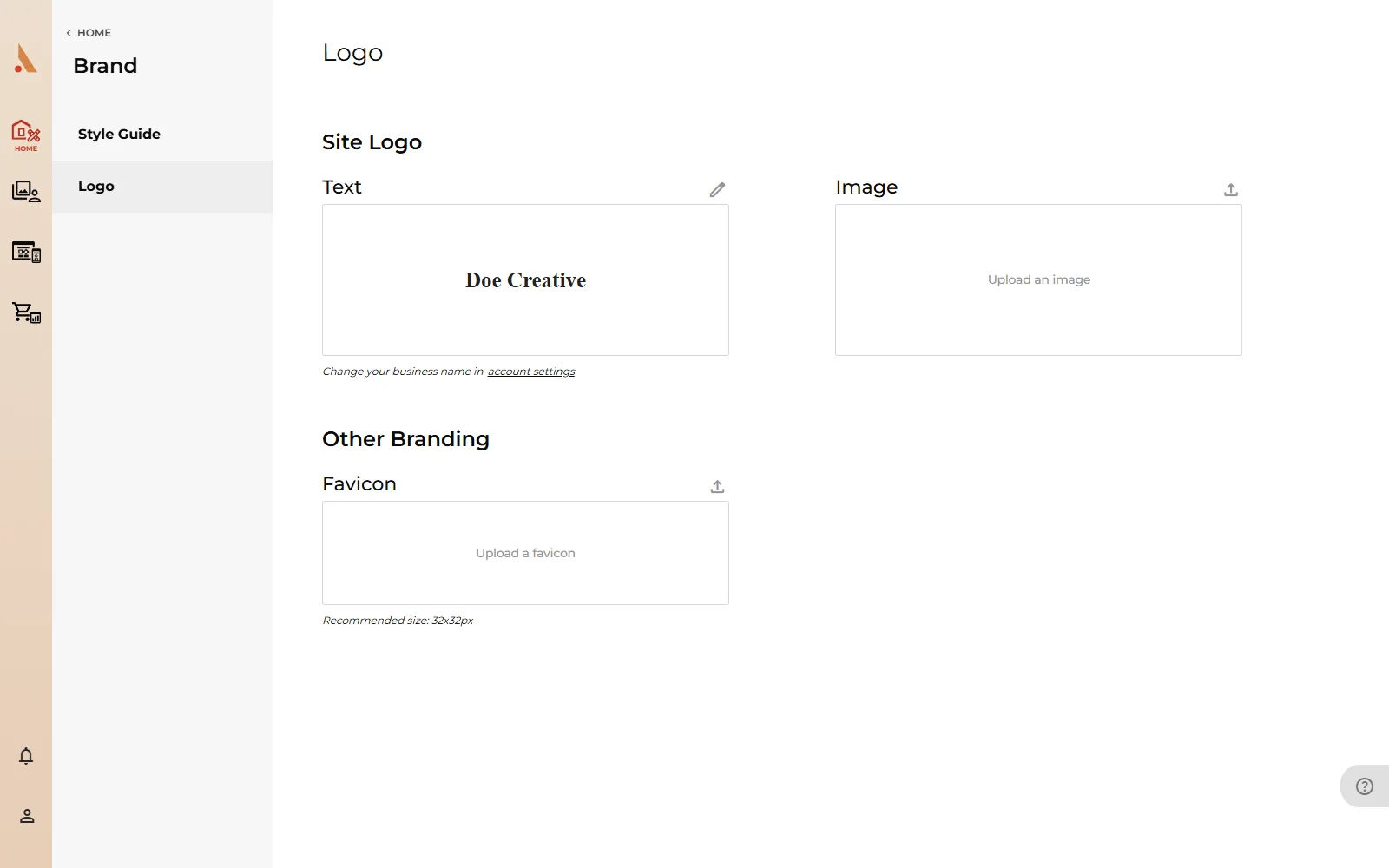
Open Home → Brand → Logo. The page has three parts:
- Text: your business name rendered as a text logo. Click the edit icon to change its Font and Color. To change the name itself, go to account settings.
- Image: upload an image logo (PNG, JPG or GIF, up to 2 MB). Click the upload icon or the Upload an image area.
- Favicon: the small icon shown in browser tabs (PNG, ICO or GIF). The preview shows it at both sizes on light and dark backgrounds so you can check legibility.
Click Save in the header when you've made changes, or Cancel to discard them.
Where your brand appears
- The style guide drives your public website and blog: every heading, paragraph, button and form field uses these styles, and your swatches appear as presets throughout the website builder.
- Your image logo appears in your website header and at the top of your Studio dashboard.
- The favicon shows in your visitors' browser tabs.
Related
Still stuck?
We're happy to help. Contact support and we'll get back to you as soon as we can.