Website basics
Updated September 2026
Every Afterify account includes a website. You don't have to set anything up: the first time you open Website in the main navigation, Afterify creates your site automatically and shows a "Website setup complete" message. The site goes live right away on a free Afterify URL like yourstudio.afterify.com, seeded with a home page you can start editing immediately.
The Builder overview
Opening Website lands you on the Builder page, your website home base:
- A live preview card of your site, with its status ("Live") and your site's URL.
- Highlights: visits, unique visits, page views and bounce rate for the selected period (This Week, Last 30 Days, or Last 6 Months).
- Brand Tools shortcuts to your style guide and logo.
- Recently Edited Pages and Recent Blog Posts for jumping straight back into your work.
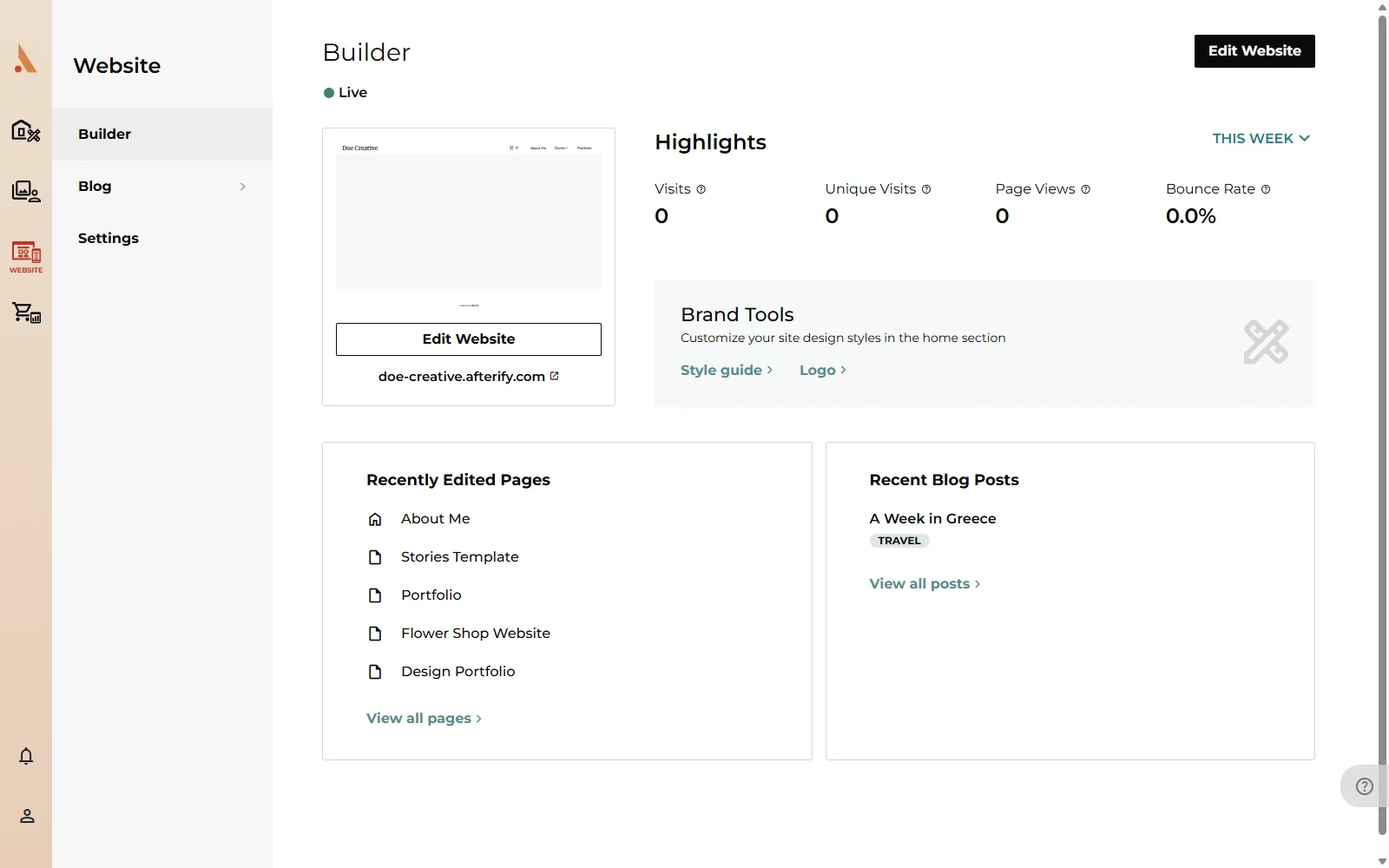 The sidebar gives you three areas: Builder (this overview), Blog, and Settings (URL, custom domain, contact details, analytics). See Website settings for what's in that last one.
Preview mode and edit mode
Click Edit Website to open the editor. The editor has two modes:
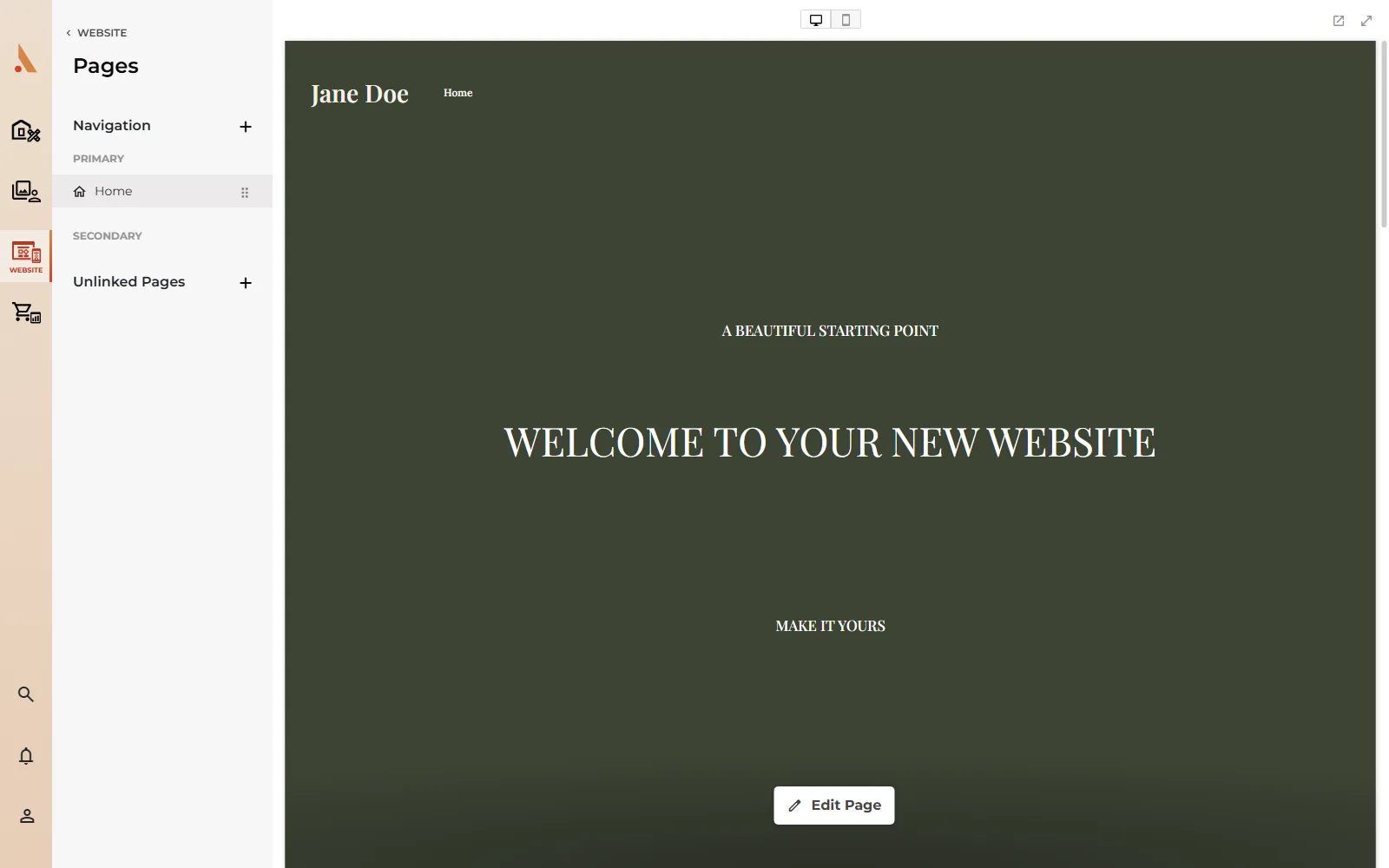
- Preview mode is where you land first. Click pages in the sidebar to browse your site exactly as visitors see it. Nothing can be changed by accident here.
- Edit mode starts when you click the Edit Page button overlaid on the page (or the pencil icon next to a page in the sidebar). The page becomes an editable canvas where you can select sections and components.
While editing, the bar above the canvas gives you:
- Undo and Redo (Ctrl+Z and Ctrl+Shift+Z)
- Open Website (Ctrl+Shift+O) to view the live site in a new tab
- Fullscreen (Ctrl+Shift+F) for more canvas room
- A Desktop View / Mobile View toggle to design each layout separately
Saving, and the unsaved-changes guard
Edits happen on a working copy. Nothing reaches your live site until you click Save in the sidebar; Cancel throws the changes away and returns to the last saved version.
While you have unsaved changes, the editor won't let you navigate away. You'll see the message "You have unsaved changes, save or cancel them before leaving the editor." Closing the browser tab also triggers a confirmation, so a stray click can't cost you your work.
Plans and multiple sites
The Free plan includes one website with one page and up to 10 components, and the builder becomes read-only if you downgrade from a paid plan. Paid plans unlock more pages, more components, video and audio, custom domains and higher website allowances. See Plans at a glance for the full comparison.
Your site design pulls colors, fonts and your logo from your brand settings, so it's worth setting those up early. See Brand settings.
Related
Still stuck?
We're happy to help. Contact support and we'll get back to you as soon as we can.