Add and arrange blocks
Updated September 2026
Pages are built from sections (full-width horizontal bands) that hold components (the individual blocks: text, images, buttons and so on). Components sit on a grid, so everything you place stays aligned.
Add a section
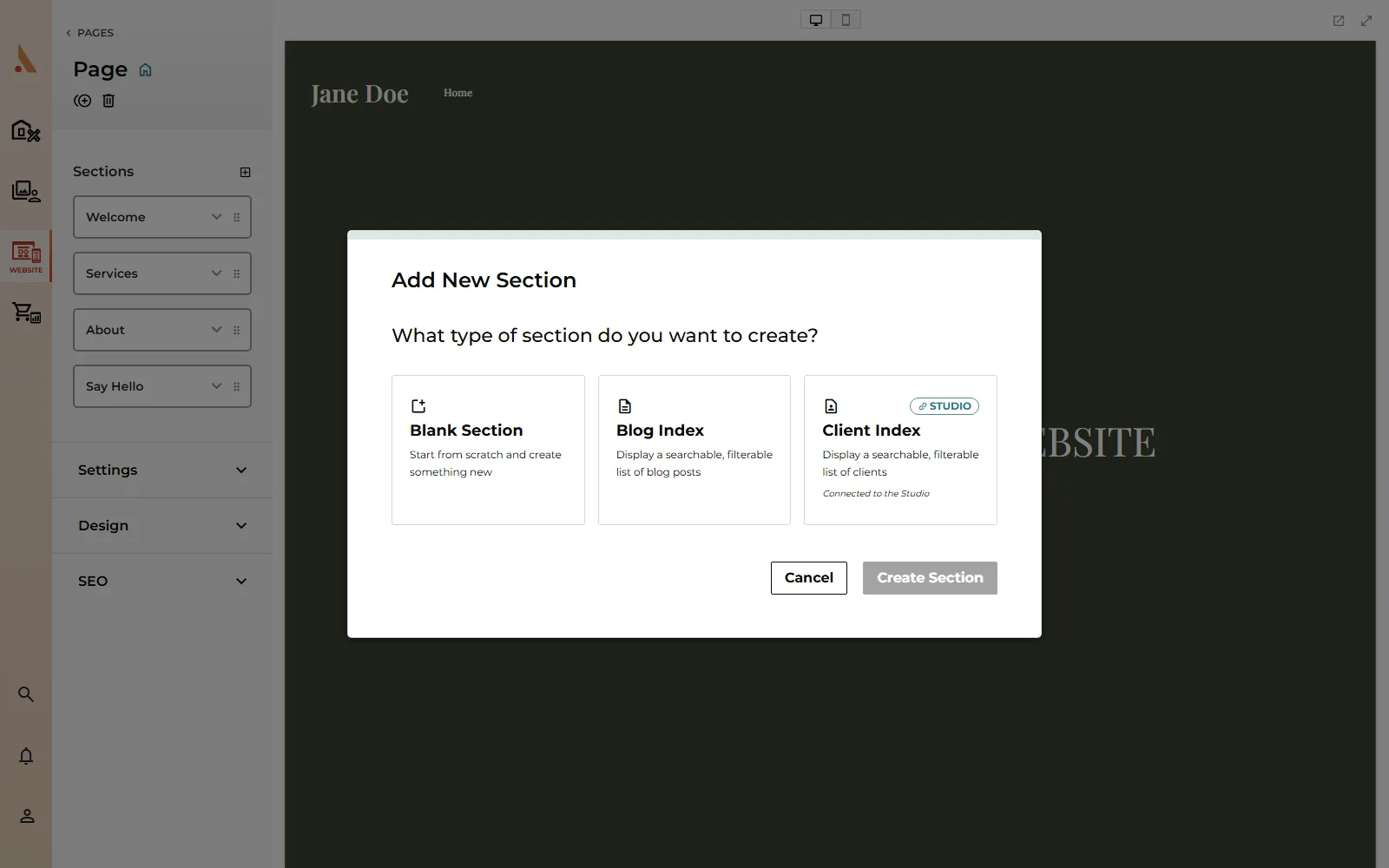
- In edit mode, click Add Section below the last section on the canvas, or use the + button next to Sections in the sidebar.
- In the Add New Section modal, pick a type:
- Blank Section: start from scratch.
- Blog Index: a searchable, filterable list of your blog posts.
- Client Index: a searchable, filterable list of your Studio clients.
- Click Create Section.
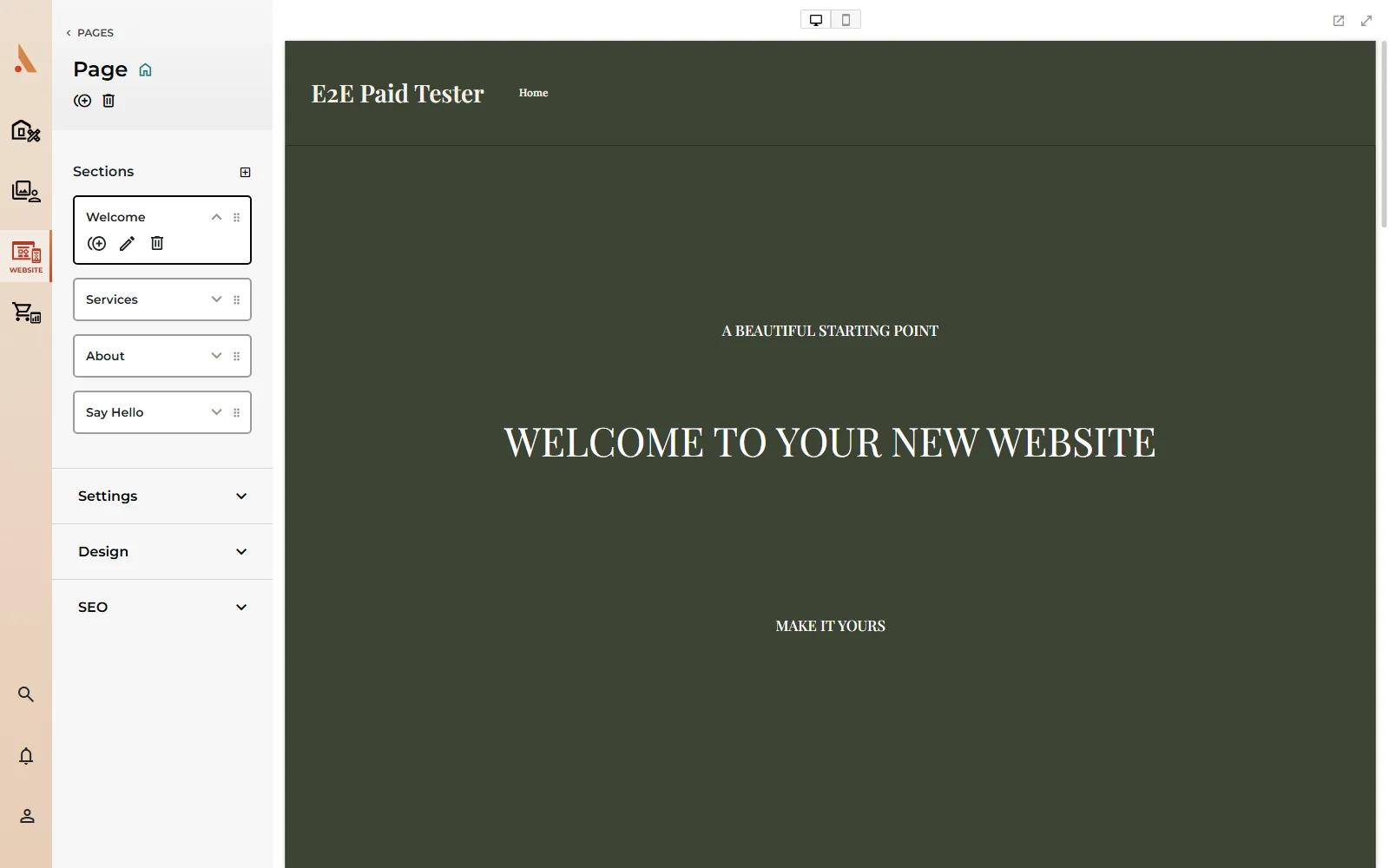
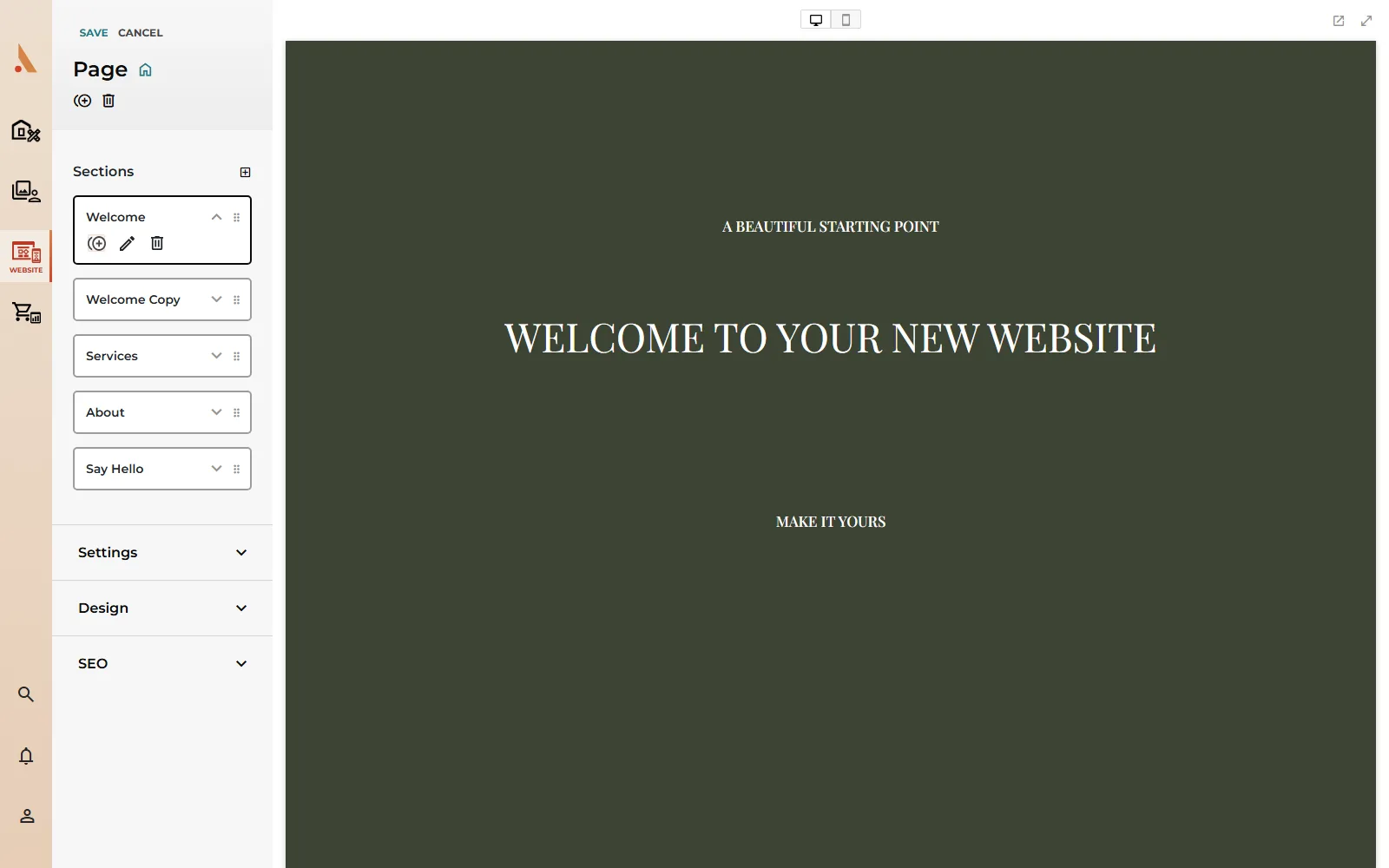
The sidebar's Sections list mirrors the canvas. Hover between rows to reveal insert lines for adding a section at an exact spot, drag rows to reorder, double-click a name to rename it, and use each row's Duplicate, Edit and Delete tools.
Add a component
- Click a section to select it, then click Add Component in its toolbar.
- Pick a block from the panel: Text, Social, Button, Media, Button Group, Gallery, Form, Shape or Map.
- The component lands in the section, ready to position.
The Free plan includes up to 10 components across your site.
Move and resize
- Drag a component to move it. Center guidelines appear during the drag and light up when the block is centered. Hold Shift mid-drag to lock movement to one axis, or hold Alt before dragging to drag out a duplicate.
- Resize with the corner and side handles. Hold Shift on a corner to keep the aspect ratio, or double-click a handle to shrink the block to its content.
- Select a section to reveal its own toolbar: Duplicate, Delete, Linking (anchor and scroll-to), Section & Grid (columns, gaps, height, alignment), Color, Move Up and Move Down.
- Select two or more components (Shift+click or drag a selection box) to move or resize them as a group, or group them permanently with the group button.
Each section's Layers list in the sidebar shows every component in stacking order, which is the easiest way to find a block that's hidden behind another.
Design the mobile layout
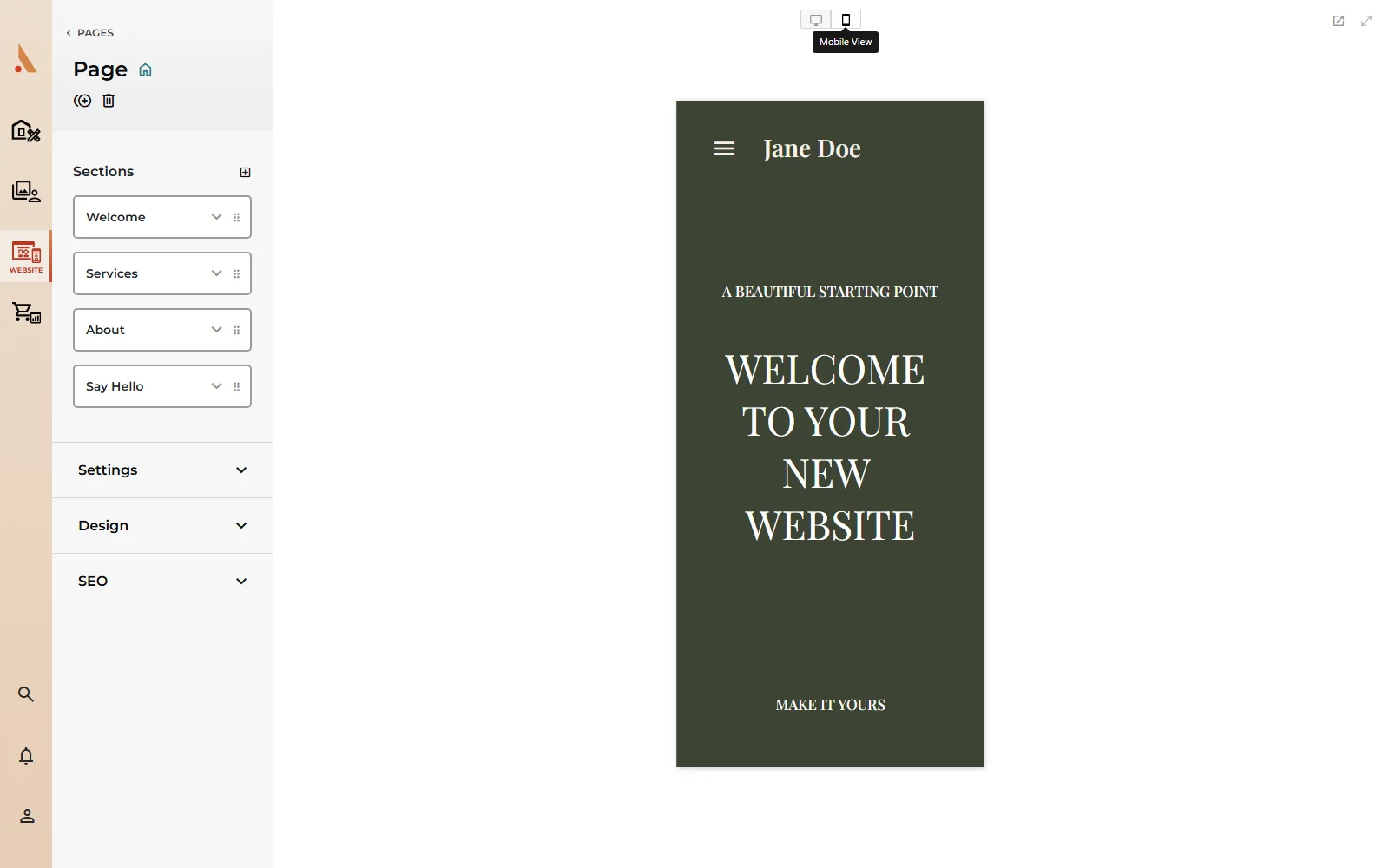
Use the Mobile View toggle above the canvas to switch the editor into a phone frame. Moving or resizing a component there saves a separate mobile position and leaves your desktop layout alone. Every component and section also has a Visibility setting, so a block can appear on desktop only, mobile only, or both. Anything hidden in the current view stays reachable from the Layers list.
Keyboard shortcuts
| Shortcut | Action |
|---|---|
| Arrow keys | Nudge the selected component one grid cell (Shift jumps three) |
| Delete / Backspace | Delete the selection (sections ask for confirmation) |
| Ctrl+Alt+D | Duplicate the selection |
| Ctrl+Alt+C / Ctrl+Alt+V | Copy and paste components |
| Ctrl+Alt+G | Group or ungroup the selection |
| and | Send back / bring forward |
| Enter | Start editing the selected text block |
| Escape | Step back out: stop editing, then deselect the component, then the section |
| Ctrl+Z / Ctrl+Shift+Z | Undo / redo |
| Ctrl+Shift+F | Toggle fullscreen |
Related
Still stuck?
We're happy to help. Contact support and we'll get back to you as soon as we can.