Pages and navigation
Updated September 2026
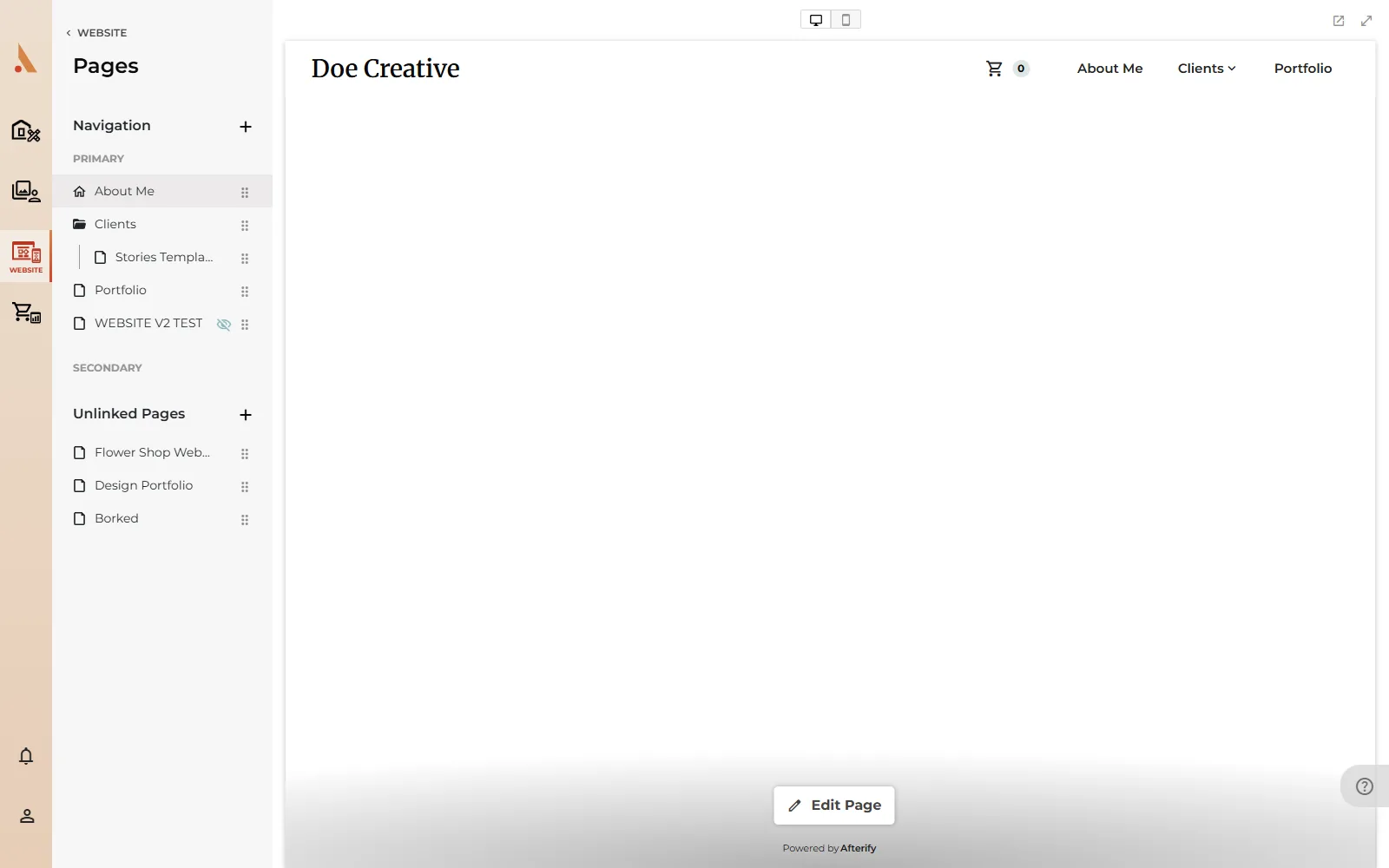
Your site's pages live in the editor sidebar, organized into the same groups your visitors see: Navigation (split into Primary and Secondary menus) and Unlinked Pages. Unlinked pages are published and reachable by their URL, but don't appear in any menu, which makes them handy for landing pages you share directly.
Add a page
- Open Website and click Edit Website.
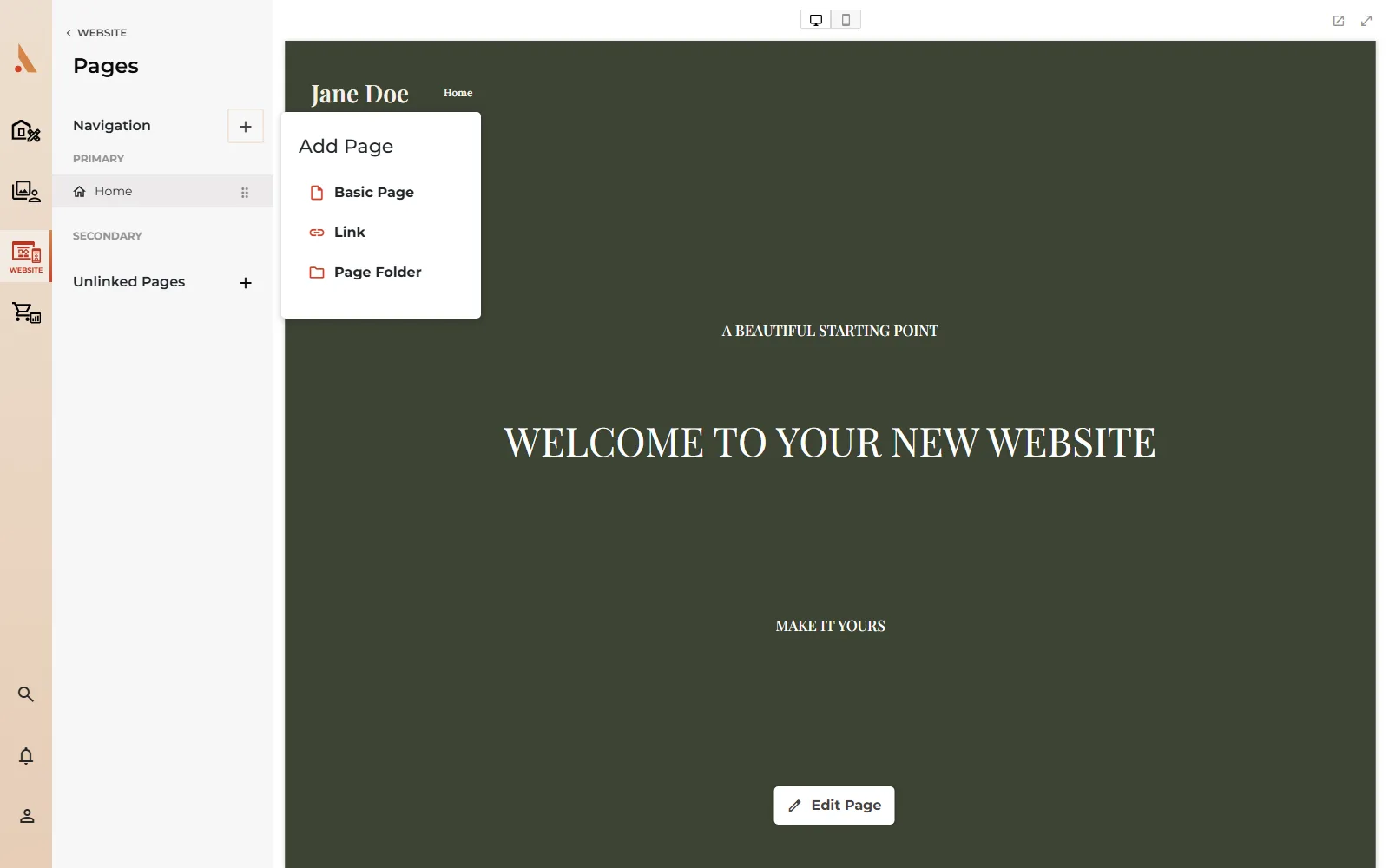
- In the Pages sidebar, click the + button next to Navigation (or next to Unlinked Pages to create the page there).
- In the Add Page popup, choose one of:
- Basic Page: a regular page you design with sections and components.
- Link: a navigation item that points to any URL, with an Open in new window option.
- Page Folder: a dropdown menu that groups pages beneath it.
- The new page appears in the list and opens straight into edit mode.
On the Free plan, your site includes one page and the add buttons show a lock. Upgrade to add more pages.
Arrange the navigation
Drag pages by the handle on the right of each row:
- Reorder pages within a list.
- Drag between Primary, Secondary and Unlinked Pages to move a page in or out of your menus.
- Drop a page onto another page to nest it as a subpage (folders and pages that already have subpages can't be nested).
You'll see a "Page order saved" confirmation after each change.
Page settings
Click the pencil icon on a page row to open its options. The panel's Settings, Design and SEO groups cover:
- Page Active: whether the page is visible to the public.
- Page Title and Navigation Title: the title, and an optional override for what the menu shows.
- URL Slug: the page's permanent link. Afterify warns you if the URL is already in use.
- Background Color under Design.
- SEO Title, Page Description, Meta Image and Hide Page from Search under SEO.
Click Save to apply your changes, or Cancel to discard them.
Duplicate, delete and set as home
At the top of the page options panel:
- Duplicate copies the page, including all of its sections. If the page has unsaved changes, Afterify asks to Save & Duplicate first so the copy matches what you see.
- Delete removes the page after a confirmation. Deleting your home page is allowed, and Afterify then treats your first page as the home page until you set a new one.
- Set as home (the house icon) makes the current page your home page.
Both Duplicate and Delete are grayed out on the Free plan, since a Free site only includes one page to begin with. Upgrade to a paid plan to use them.
Deleting a page permanently removes its content and any images uploaded to it. There is no undo for a deleted page.
Related
Still stuck?
We're happy to help. Contact support and we'll get back to you as soon as we can.