Publish your website
Updated September 2026
Afterify doesn't have a separate publish step. Your site is live from the moment it's created, and clicking Save in the editor pushes your changes straight to the live site. This page explains exactly what's public, what isn't, and how to control it.
Saving is publishing
While you edit, changes exist only in your browser. Visitors keep seeing the last saved version, and the editor won't let you leave with unsaved work; you have to Save or Cancel first.
When you click Save:
- The page's saved content immediately becomes what visitors see.
- Cancel instead discards the session and the live site never changes.
To check the result, click the Open Website icon above the canvas (Ctrl+Shift+O). It opens the live page in a new tab.
What's public and what isn't
A few settings keep content off the live site even after saving:
- Page Active (in each page's Settings) controls whether the public can see that page. Inactive pages show an eye icon in the Pages sidebar.
- Unlinked Pages are live but appear in no menu; only people with the link find them.
- Component and section Visibility can hide a block on desktop, mobile, or both.
- Hide Page from Search (in the page's SEO settings) asks search engines not to index a page that's otherwise public.
Your Afterify URL
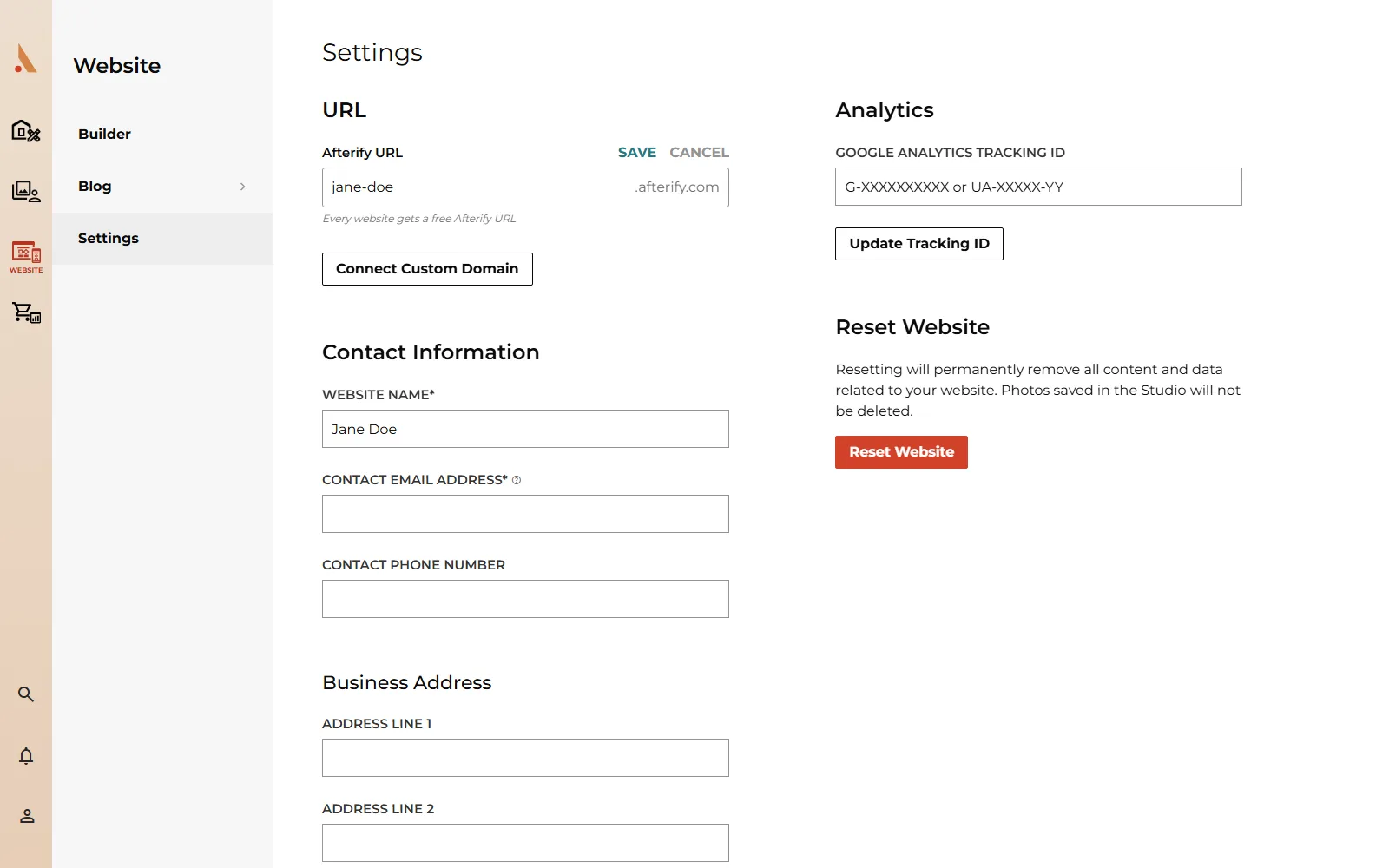
Your site lives at a free subdomain like yourstudio.afterify.com. To change it:
- Open Website → Settings.
- Under Afterify URL, click Edit.
- Type the new name (it must be more than 3 characters and not already taken) and click Save.
The old URL stops working once you change it, so update any links you've shared. To use your own domain instead, see Connect a custom domain; your Afterify URL keeps working alongside it.
Deactivated sites
A site that's deactivated is not served publicly at all: visitors get a not-found page instead of your content. This happens if your website access ends (for example, well after a downgrade to the Free plan when the grace period runs out) or if you remove the site. While a downgraded account is in its grace period, the builder is read-only and the sidebar shows how long until website media is deleted; upgrading again restores full editing. See Billing, upgrades and downgrades.
Reset Website in Website → Settings permanently removes all website content and data and starts you over with a fresh site. Photos saved in the Studio are not deleted.
Something not showing up on the live site? Run through Website publishing problems for the usual causes.
Related
Still stuck?
We're happy to help. Contact support and we'll get back to you as soon as we can.