Billing, upgrades and downgrades
Updated September 2026
Everything about your subscription lives on one page: open the account dropdown (person icon, top right) and choose Billing & Subscription, or use the Account panel on your Home dashboard.
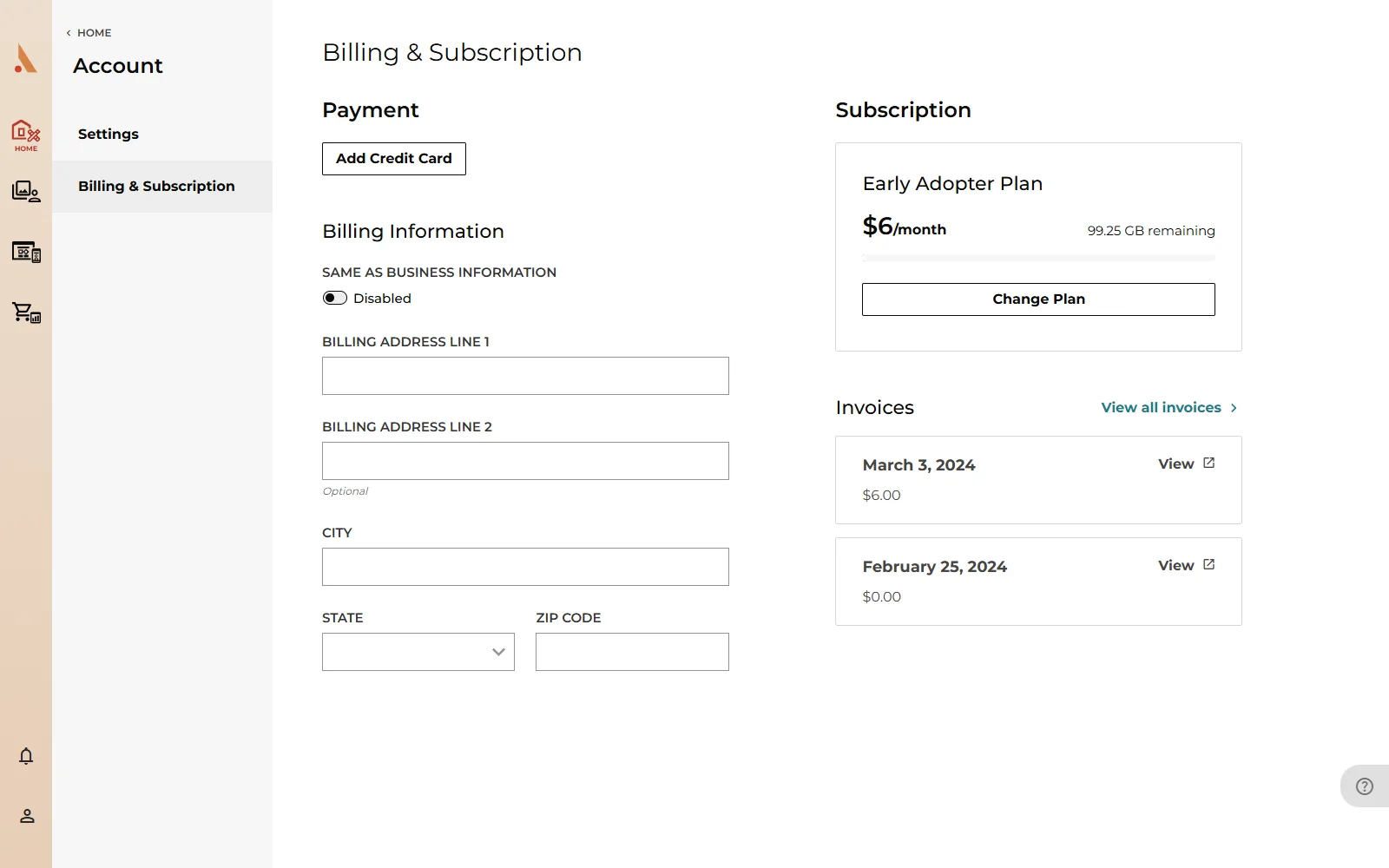
What's on the Billing page
- Subscription: your current plan, its monthly or yearly price, how many GB of storage you have remaining, and a usage bar. Free accounts see an Upgrade Plan button; paid accounts see Change Plan.
- Invoices: your three most recent invoices, with a View all invoices link for the full history. Each invoice opens in a new tab where you can view or download it.
- Payment: the card on file (or Apple Pay), with an Update button to replace it. If no card is saved yet you'll see Add Credit Card.
- Billing Information: your billing address. Turn on Same as business information to reuse your business address, then Save.
Adding a new card replaces Apple Pay if you had it set up. The page warns you before saving.
Upgrade or change your plan
- On the Billing page, click Upgrade Plan (or Change Plan if you're already on a paid plan).
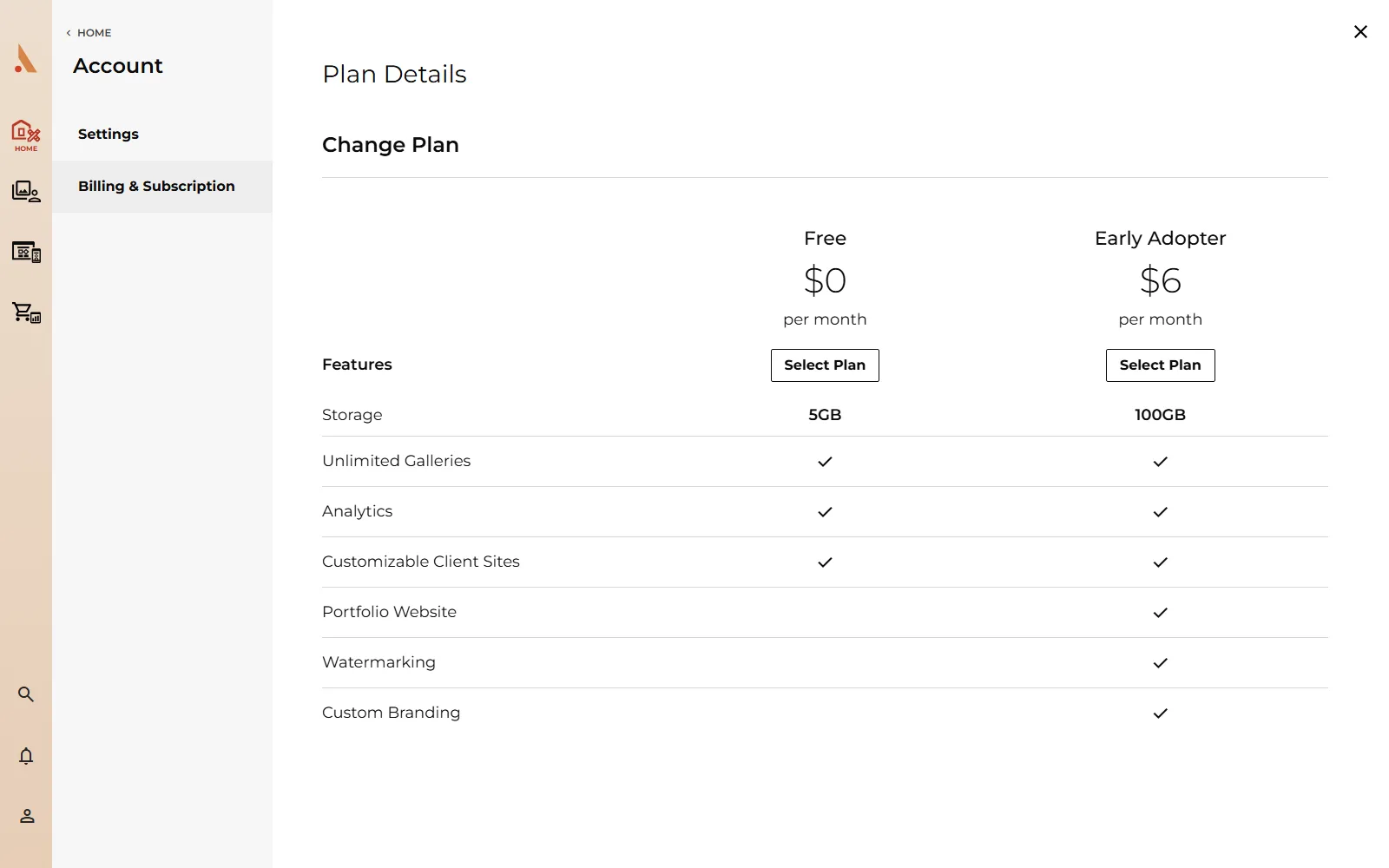
- The Plan Details viewer opens with a side-by-side comparison. See Plans at a glance for the limits.
- Click Change Plan under the plan you want.
- If you don't have a card saved yet, you'll be asked to add one first. Otherwise confirm the change.
- A "Your plan is updating" overlay shows while the change processes, usually a few seconds. Your new limits apply as soon as it completes.
If the payment can't be processed, the error appears right on the Subscription card so you can try a different card or contact your bank.
What happens when you downgrade to Free
Downgrading cancels your subscription and moves you to the Free plan's limits right away:
- Website builder becomes read-only. Your site stays online exactly as published, but you can't edit pages until you upgrade again. (This applies to downgraded accounts; a Free account that never had a paid plan can still edit its single page.)
- Watermarks are locked. You can no longer create or apply watermarks; the Watermarks page shows an upgrade prompt instead.
- Free limits apply: 5 GB storage, 1 website page, 10 website components, 5 blog posts. If you're over a limit, you can't add more until you delete content or upgrade. See Storage and plan limits.
- Brand editing is locked: the style guide, logo and favicon uploads become read-only.
When a trial ends
If your trial ends without a subscription, a notice appears the next time you open the app: subscribe there to keep your premium features, or click Downgrade to Free Plan. If you take no action, your account converts to the Free plan automatically.
Deleting your account
Account deletion isn't on the Billing page; it's under Account Settings. See Manage your profile.
Related
Still stuck?
We're happy to help. Contact support and we'll get back to you as soon as we can.