Storage and plan limits
Updated September 2026
Every plan includes a storage allowance for the photos you upload to Studio. This article explains how usage is counted, where to see it, and what changes when you hit a limit.
How storage is counted
Storage is counted per account, across all your clients and projects: every photo you upload adds its file size to your total. Deleting photos frees the space again.
Your allowance depends on your plan:
| Plan | Storage |
|---|---|
| Free | 5 GB |
| Amateur | 100 GB |
| Professional | 500 GB |
| Unlimited | Unlimited |
Where to check your usage
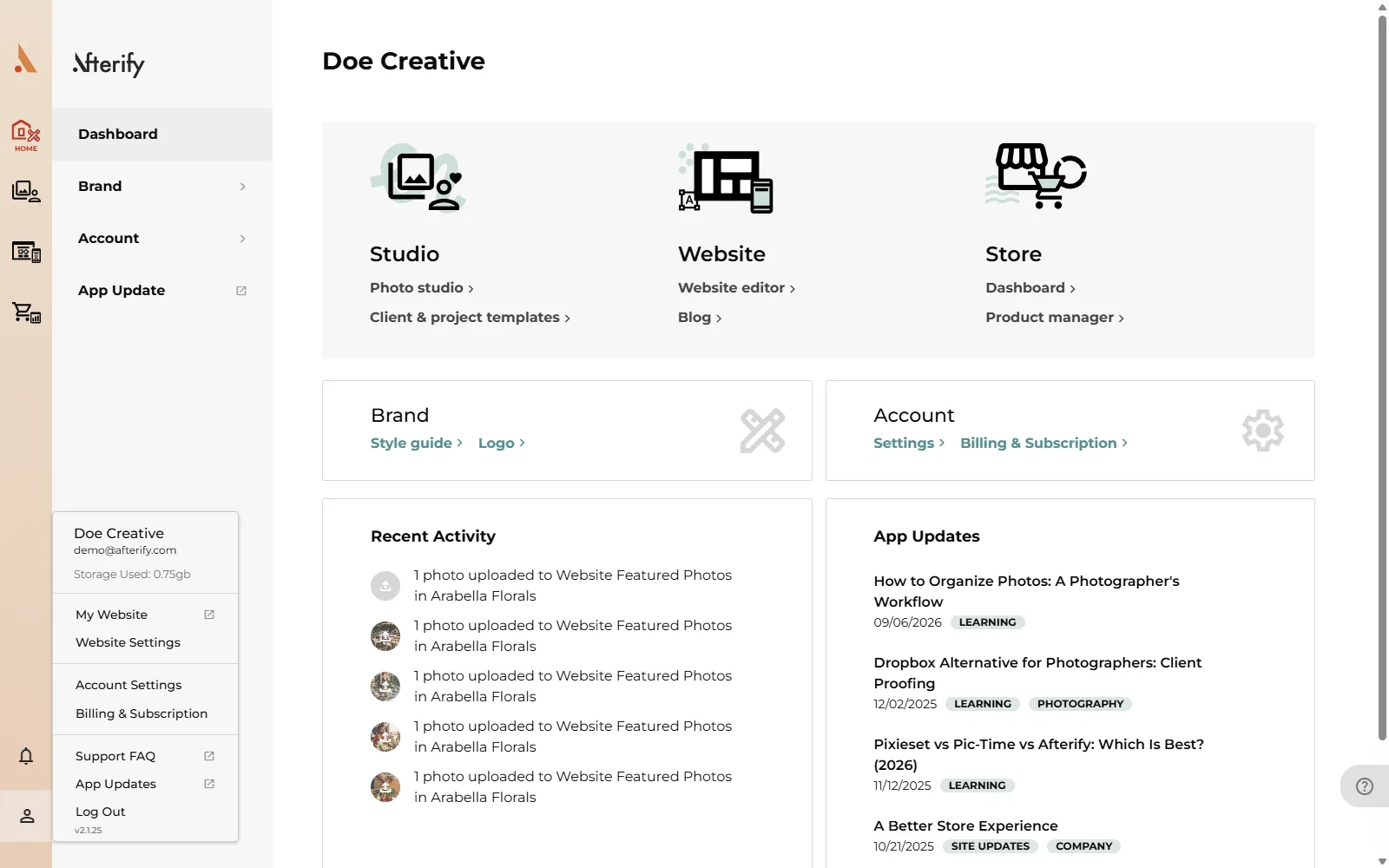
- Account dropdown: click the person icon at the top right; Storage Used is shown under your name.
- Billing & Subscription: the Subscription card shows how many GB you have remaining, with a usage bar. Open it from the account dropdown or the Account panel on Home.
The plan-limit banner
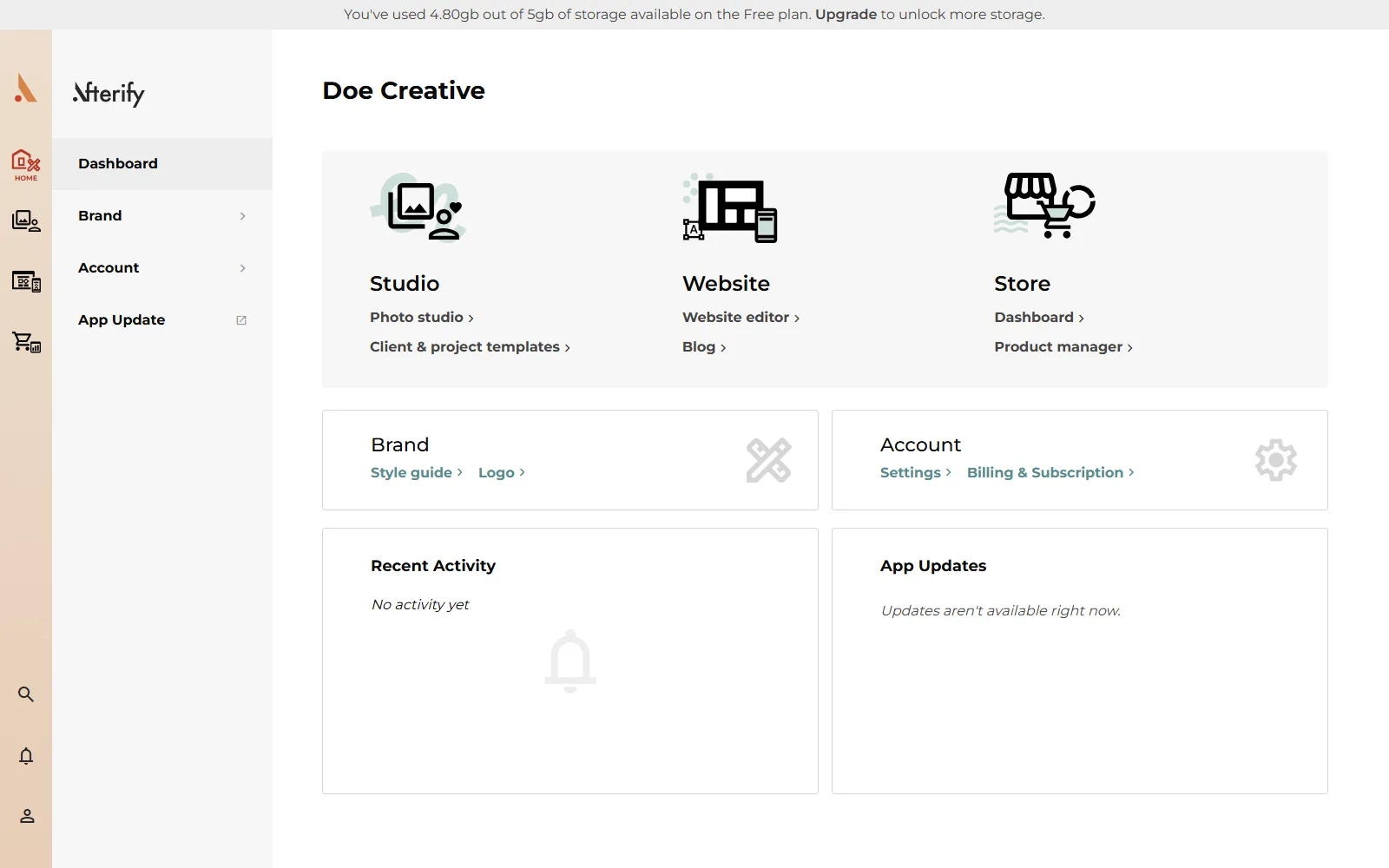
On the Free plan, a banner runs across the top of the app (on desktop) showing how you're tracking against your limits, with an Upgrade link to the Billing page. If you're approaching a specific limit, the banner names it. For example:
- "You've used 4.2 GB out of 5 GB of storage available on the Free plan."
- "You've created 5 of 5 blog posts available on the Free plan."
The banner also covers websites and website components. Paid plans don't show the banner.
What happens at the limit
When your storage is full, new uploads are blocked. Starting an upload opens the usual dialog, but instead of the photo picker you'll see:
"You've reached your storage limit"
with a note that you can delete some files or upgrade your plan. Nothing you've already uploaded is affected: existing galleries keep working and clients can still view and download.
The same pattern applies to the other Free-plan caps (blog posts, website components, websites): the "new" action is blocked with an upgrade prompt, and existing content stays live.
Freeing up space
- Open Studio and find projects you no longer need to keep online. Delivered shoots past their download window are good candidates.
- Delete individual photos, whole collections, or entire projects. Deleted files stop counting against your storage.
- Watch Storage Used in the account dropdown update.
Deletion is permanent. Make sure you have your own originals backed up before removing photos from Afterify.
If you'd rather not delete anything, upgrading takes effect immediately: see Billing, upgrades and downgrades.
Related
Still stuck?
We're happy to help. Contact support and we'll get back to you as soon as we can.