Customize your gallery
Updated September 2026
Every client and every project has its own Design page: a live preview of the gallery with a sidebar of style options. Changes apply to the preview immediately; nothing is published until you click Save.
- The client Design page styles the page listing the client's projects.
- The project Design page styles the photo gallery itself.
Open a client or project and go to its Design page. The sidebar is titled Client Page or Project Page accordingly.
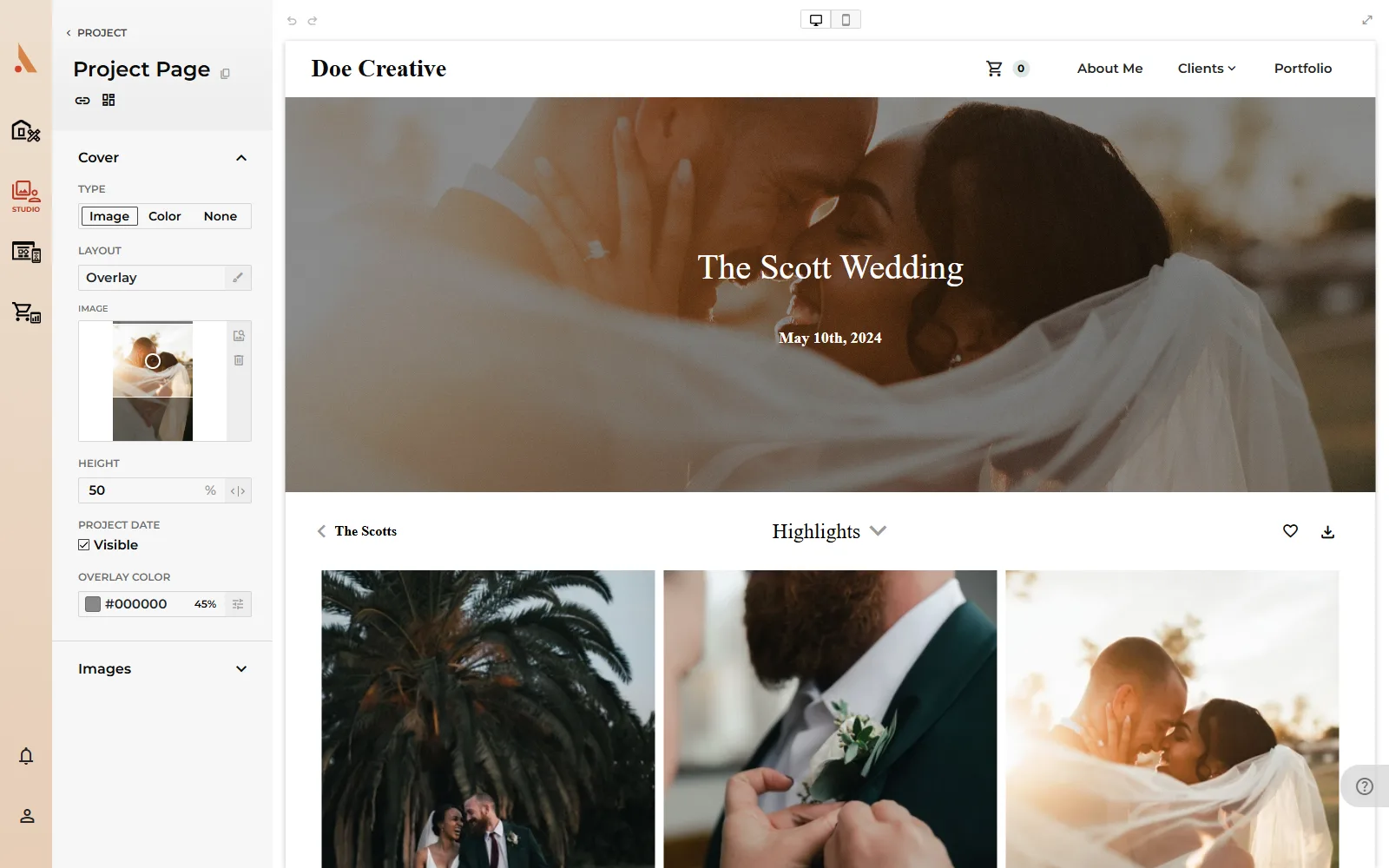
The editor
- Undo/redo: Ctrl+Z and Ctrl+Shift+Z (⌘ on Mac), with buttons at the top of the preview.
- Desktop View / Mobile View: toggle to check both sizes; there's also a fullscreen preview (Ctrl+Shift+F).
- Save / Cancel: appear in the sidebar once you've changed something.
- The link icon copies the page's live URL, and the templates icon opens the Apply Template panel; see Explore gallery templates.
Cover
The Cover group styles the hero at the top of the page:
- Type: Image, Color or None.
- Layout: how the title sits on the cover; click the brush icon to open the Cover Style panel and pick a layout.
- Image: for image covers, pick the photo via the image search icon and drag the focal point ring to frame it. The shaded band shows what the hero keeps in view.
- Height: the cover's height as a percentage of the screen.
- Background Color (color covers) or Overlay Color (image covers): solid colors or gradients from the color picker.
- Scroll Arrow: on tall covers, shows an arrow inviting visitors to scroll.
- Project Date: on project pages, shows or hides the date on the cover.
Projects and Images
The second group is Projects on a client page and Images on a project page:
- Background: Light or Dark page background (project pages).
- Display Order: how projects or photos are sorted.
- Layout Type: vertical (masonry), square or horizontal grids for photos.
- Columns: how many columns the grid uses (up to 5 for project tiles, 10 for photos).
- Image Spacing / Column Spacing: the gap between items.
- Project Details: on client pages, show or hide each project's name and date, and pick the Project Detail Style (like overlaid on the tile).
Typography and site-wide styling
Gallery pages inherit fonts and heading styles from your website's style guide, so the whole site stays consistent. Set those in the website builder. See Website basics.
Styling the same look repeatedly? Save it as a template and apply it to new clients and projects in one click.
Related
Still stuck?
We're happy to help. Contact support and we'll get back to you as soon as we can.