Explore gallery templates
Updated September 2026
Templates are saved gallery designs you can reuse. Instead of styling every client and project page from scratch, design once, save it as a template, and apply it wherever you like. There are two kinds:
- Client templates style a client's page, the grid of projects your client lands on.
- Project templates style a project's gallery, the photo grid itself.
Browse your templates
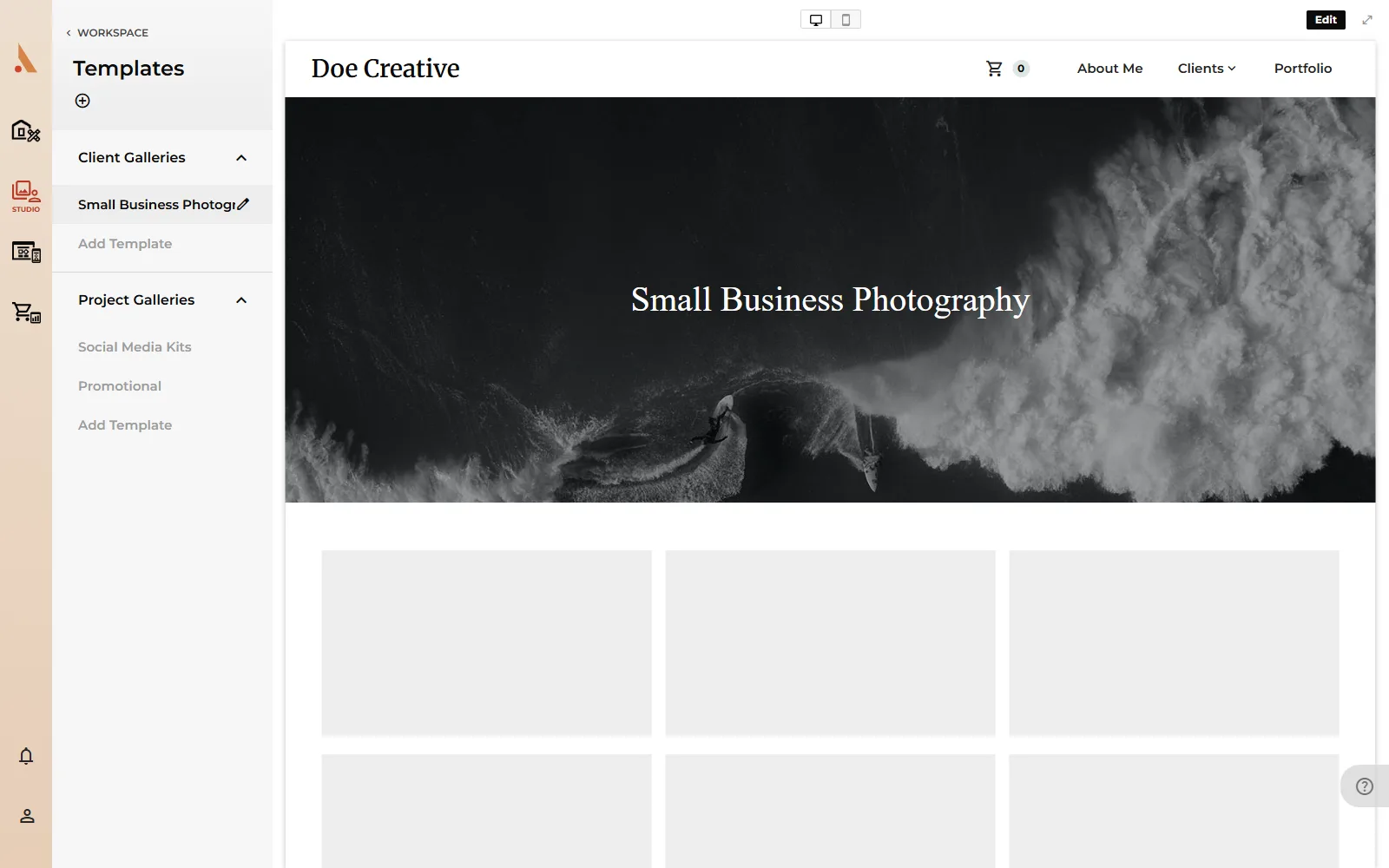
Open Studio → Templates. The sidebar lists your templates under Client Galleries and Project Galleries; click one to preview it full-page with placeholder content, switchable between Desktop View and Mobile View.
Create a template
- In the Templates sidebar, click Add Template under the kind you want (or the + button at the top to pick the type in the dialog).
- Enter a Template Name, and a Template Type (Client or Project) if you used the + button.
- Submit. The template opens straight in the design editor.
The editor is the same one used by client and project Design pages: cover type, height and colors, grid layout, columns and spacing, with undo/redo and Save/Cancel. See Customize your gallery for every control.
To change an existing template later, select it and click Edit. From inside the editor you can also rename, duplicate or delete the template using the icons at the top of the sidebar.
Apply a template
There are two moments you can apply a template:
When creating a client or project. The Create Client step has a Client Webpage Template dropdown, and the Create Project step has a Project Webpage Template dropdown; pick one and the new page starts with that design.
On an existing client or project. From its Design page:
- Click the templates icon in the sidebar header to open the Apply Template panel.
- Click a template to preview it live on the page.
- Click Save to keep it, or Cancel to return to the previous design.
Applying a template copies the design onto that client or project, so editing the template later won't change pages that already used it.
Related
Still stuck?
We're happy to help. Contact support and we'll get back to you as soon as we can.