Labels and focal points
Updated September 2026
Two small tools make large libraries easier to manage: labels help you find photos again, and focal points control how cover images crop.
Photo labels
Labels are keywords attached to individual photos, things like "ring", "first-dance" or "retouched". Their main job is search: the global search overlay (Ctrl/⌘+K) matches photo names and labels, so a label is the fastest way to resurface photos whose filenames tell you nothing. The quick filter on a project's photo grid only matches names, not labels.
To add a label, open the photo in the photo viewer, open the New Label dialog, enter a Label Name and click Add. Labels are per-photo and only visible to you, never to your client.
Keep labels short and consistent; you'll be typing them into search later.
Focal points
Cover images get cropped: the client page hero, project thumbnails and gallery covers all show a slice of the photo rather than the whole frame. The focal point tells Afterify which part of the image to keep in view when that happens.
You set a focal point by dragging a ring over a preview of the image. A shaded band shows the strip of the photo the cover will keep in view at its current height, and moves live as you drag.
Where to set focal points
- Client cover: open the client's Settings page. The thumbnail preview is the focal point picker: drag the ring, then click Save.
- Project cover: open the project's Settings page. With the thumbnail type set to Custom, drag the ring on the image, then Save.
- Design pages: on a client or project Design page, the cover image under the Cover section is also a live picker; the hero preview follows as you drag.
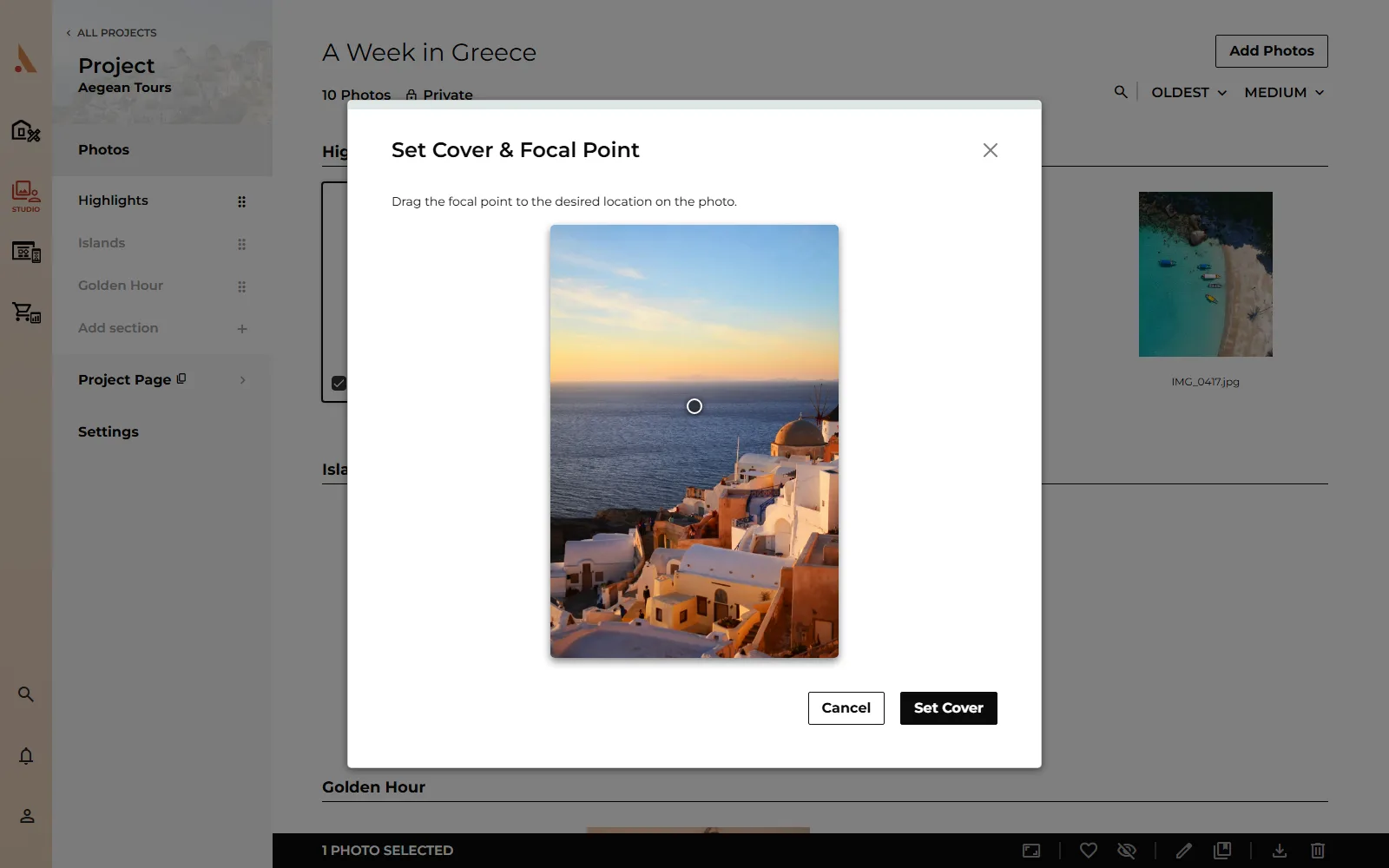
- From a photo: right-click a photo in the project and choose Set As Cover. The Set Cover & Focal Point dialog opens: drag the focal point to the desired location on the photo and click Set Cover. This sets the photo as the project cover and its focal point in one step.
Picking a different cover image resets the focal point to center, since a new photo has its own subject. Re-drag the ring after swapping covers.
Related
Still stuck?
We're happy to help. Contact support and we'll get back to you as soon as we can.