Project settings
Updated September 2026
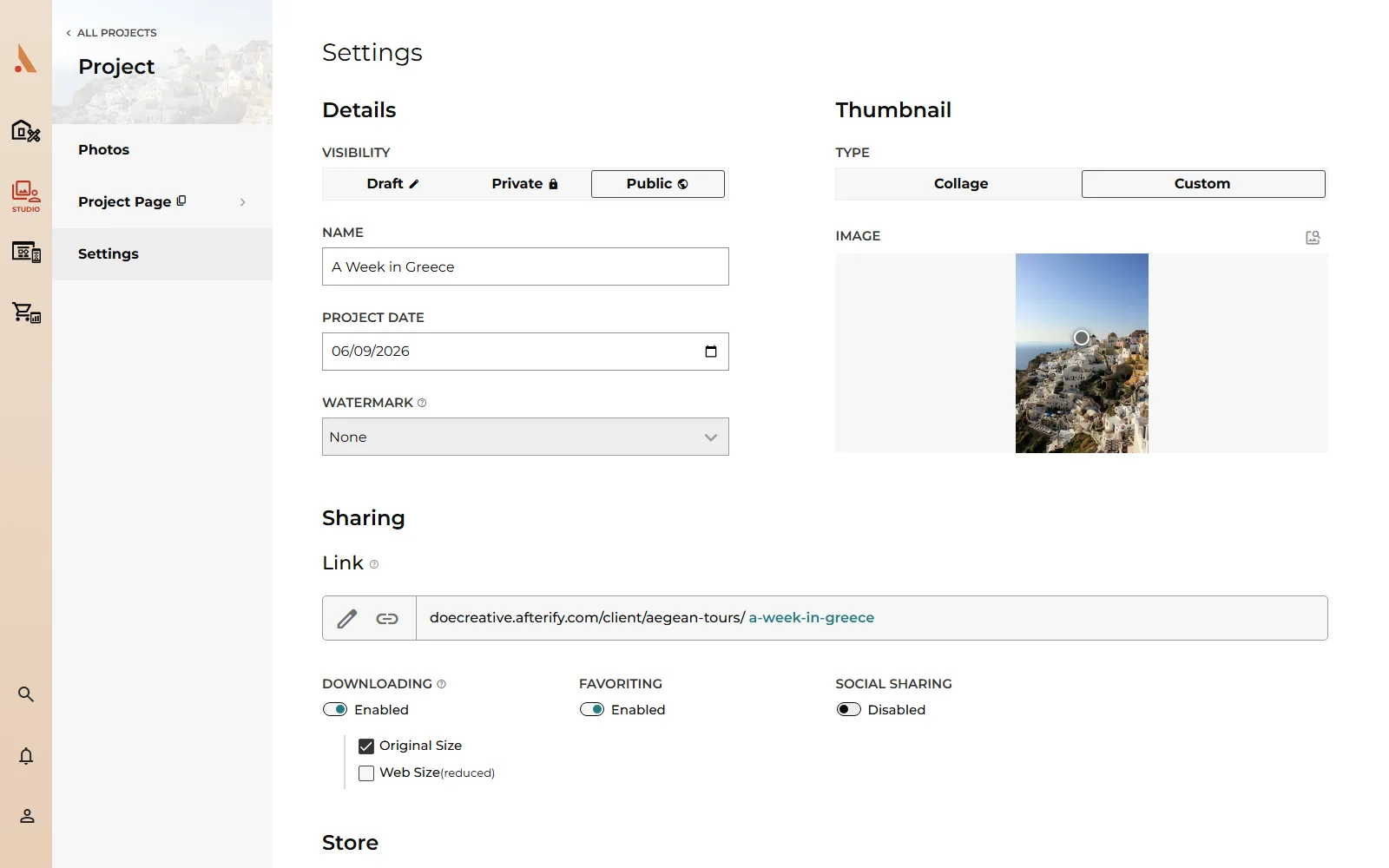
Each project has a Settings page covering everything about how its gallery behaves. Open the project and go to Settings. Changes stay local until you click Save in the header; Cancel discards them.
Details
- Visibility: the three-way toggle of Draft (offline), Private (invited users only) or Public (anyone with the link). See Share a gallery.
- Name: the display name your client sees.
- Project Date: shown on the gallery when the design has the date enabled.
- Watermark: sets the default watermark for new uploaded photos in this project. It doesn't re-watermark photos already uploaded; do that from the photo context menu. See Add watermarks.
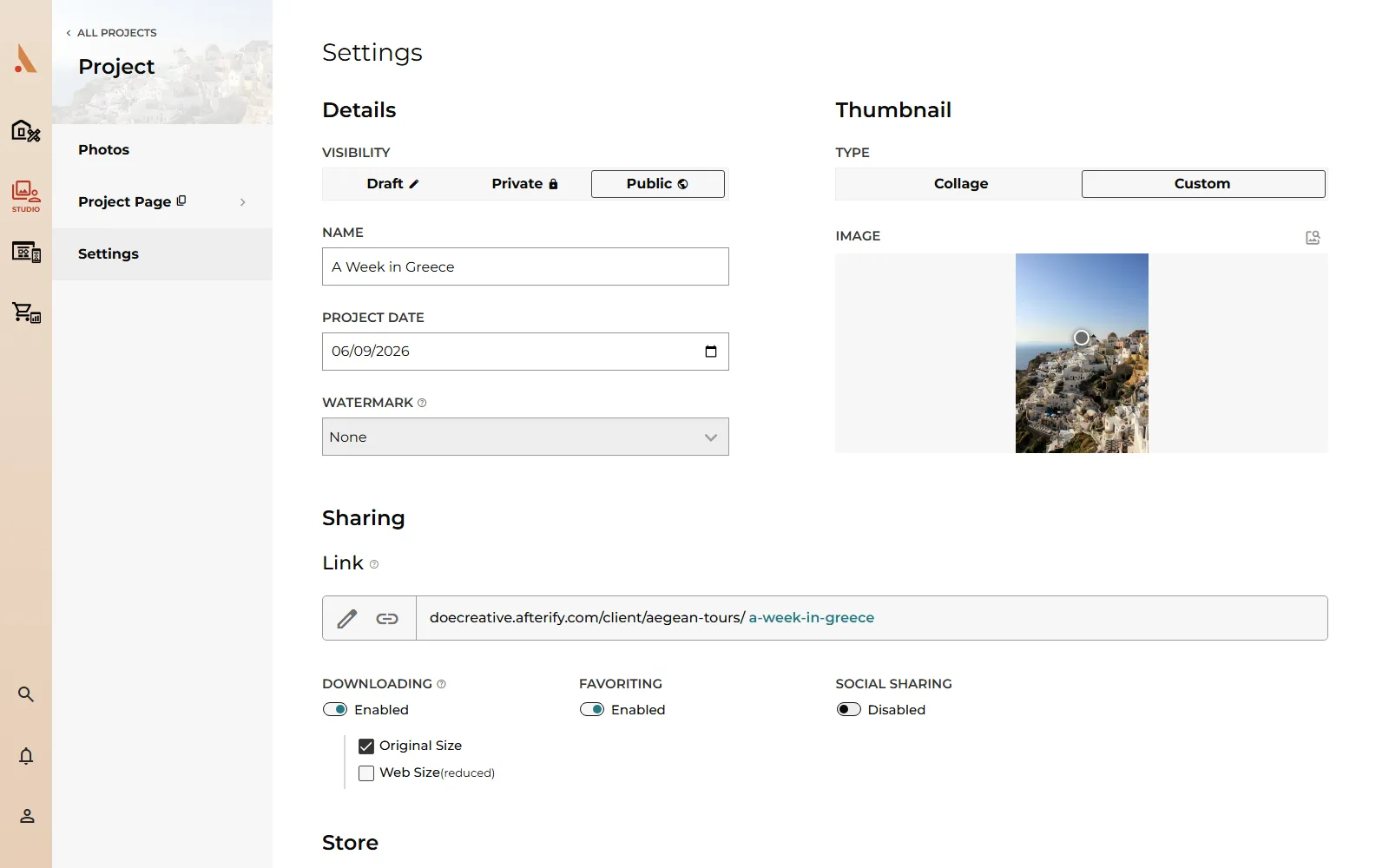
Thumbnail
Controls how the project appears on the client's page:
- Collage: a tiled sample of photos from the project. Right-click any photo and choose Add to Collage to feature it (up to five).
- Custom: one image you pick via the media manager, with a draggable focal point. See Labels and focal points.
Sharing
The Link row shows the project's full URL on your website. Click the edit icon to change the URL slug (Afterify warns if it's already in use) and the link icon to copy the URL to your clipboard.
To style the gallery itself, use the project's Design page: templates, cover, layout, spacing and colors all live there. See Customize your gallery.
Gallery permissions
Three switches control what visitors can do in this gallery:
- Downloading: lets clients download their photos. When enabled, pick which sizes they get: Original Size, Web Size (reduced), or both. More in Client downloads.
- Favoriting: lets signed-in clients mark favorites. See Client proofing and favorites.
- Social Sharing: shows a share button on photos.
Store
Turn Status on to sell prints and downloads from this gallery, then pick the Store Price Sheet that defines products and prices. If you haven't made one yet, the Create Price Sheet button takes you to the store. See Price sheets.
Delete a project
- Open the client's project list.
- Right-click the project and choose Delete Project, then confirm.
Deletion is permanent and removes every section and photo inside. If a photo in the project is part of an active order, deletion is blocked until the order is processed.
Related
Still stuck?
We're happy to help. Contact support and we'll get back to you as soon as we can.