Add watermarks
Updated September 2026
Watermarks stamp your logo or name onto the photos your gallery serves, protecting proofs and unpurchased images. Creating watermarks is a paid-plan feature: on the Free plan the Watermarks page shows an Upgrade your plan button instead of Add Watermark. See Plans at a glance.
Create a watermark
- Open Studio → Watermarks.
- Click Add Watermark. A new "Untitled Watermark" opens in the editor.
- Choose the type: Image (upload a logo, ideally a transparent PNG) or Text (your company name in a font, weight and color you pick).
- Position it by clicking one of the nine spots on the preview (corners, edges or center).
- Under Appearance, adjust Scale and Opacity, and switch the Preview Background between light and dark to check contrast.
- Click Save.
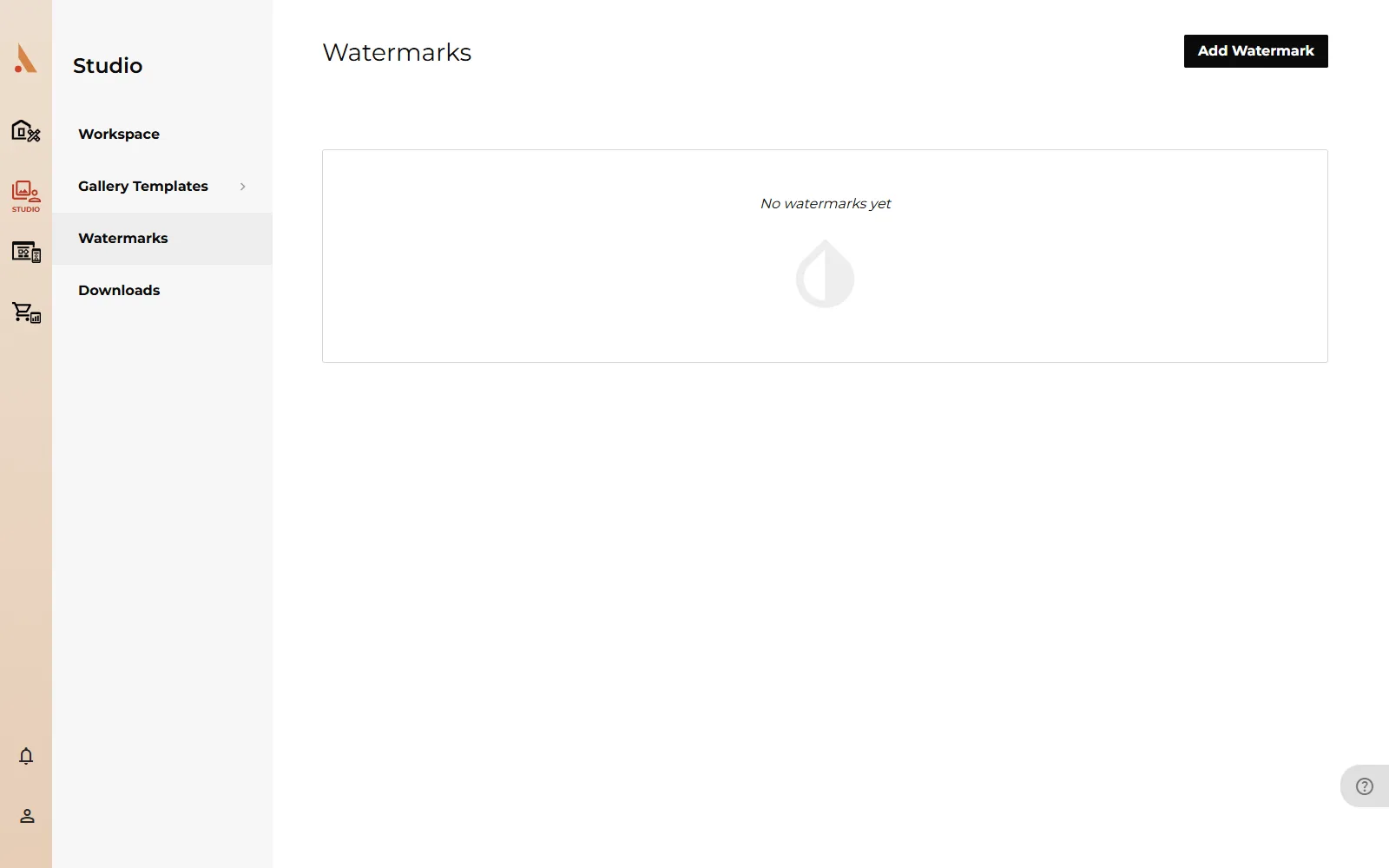 From the editor you can also duplicate a watermark (handy for a light and a dark variant) or delete it. The Watermarks page lists them all with live previews.
Apply a watermark
Watermarks are applied per photo, and there are three places to do it:
- At upload: the Add Photos modal has a Watermark dropdown; everything in that batch is uploaded with it applied.
- Per project: the Watermark dropdown on the project's Settings page sets the default for new uploads to that project. It doesn't change photos already uploaded.
- On existing photos: select one or more photos, right-click and choose Set Watermark, pick the watermark (or No Watermark to remove one), and confirm.
Changing a photo's watermark reprocesses it, so the photo is briefly unavailable: a few seconds for one photo, a few minutes for a large batch. Your originals are never altered; watermarks are applied to the copies served in the gallery, and you can remove them the same way at any time.
A common workflow: watermark the proofing gallery, then remove watermarks (or upload finals to a fresh project) once the client has purchased.
What happens on downgrade
If you move to the Free plan, your existing watermarks and watermarked photos stay exactly as they are, and you can still apply the watermarks you already created. What goes away is creating new ones: the Add Watermark button is replaced by Upgrade your plan. Upgrading again restores it. See Billing, upgrades and downgrades.
Related
Still stuck?
We're happy to help. Contact support and we'll get back to you as soon as we can.