Share a gallery
Updated September 2026
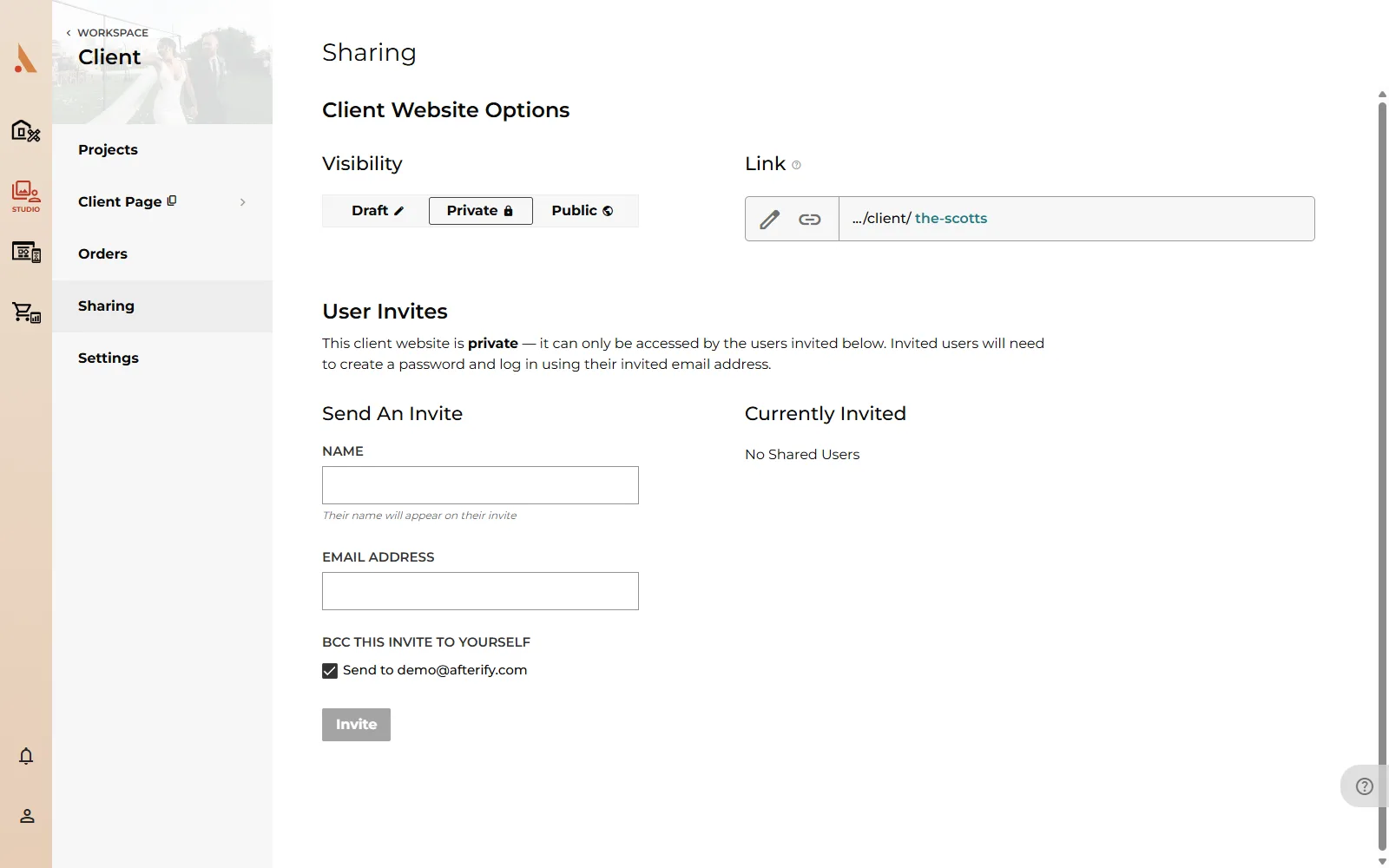
Sharing starts on the client's Sharing page: open the client in Studio and go to Sharing. This page controls the client website's visibility, its link, and email invites.
Visibility: Draft, Private, Public
The Visibility toggle has three positions:
- Draft: the client's pages aren't live. Visitors get nothing; use this while you're still preparing.
- Private: the pages are live, but locked. Only users you've invited can log in and view them. Anyone else who opens the link is bounced to a login screen.
- Public: live and open to anyone with the link.
Click Save after changing it. Projects have the same three-way toggle on their own Settings page; a project is only reachable when both it and its client are published.
The shareable link
The Link row shows the client's URL on your website: your custom domain if one is connected, otherwise your yourname.afterify.com address.
- Click the link icon to copy the URL.
- Click the edit icon to change the URL slug; Afterify checks it isn't already in use.
Each project has its own link too, shown on the project's Settings page: …/client/client-name/project-name.
Links vs email invites
Use the link when the gallery is Public: paste it into an email or message and anyone can view. This is the low-friction option for galleries that don't need protection.
Use email invites when the gallery is Private: each person you invite gets an email with a single-use code that creates their Afterify account and unlocks the gallery. Invites give you real access control (you can see who has access and revoke it at any time), and they're what enables per-person features like favorites.
A private gallery can only be accessed by the users invited on the Sharing page. Invited users create a password and log in with their invited email address.
The invite flow, the client's account-creation experience, and managing access are covered in:
Related
Still stuck?
We're happy to help. Contact support and we'll get back to you as soon as we can.