Invite clients by email
Updated September 2026
Email invites are how clients get into a Private gallery. Each invite is personal: the recipient creates their own Afterify login tied to their email address, and you can see and manage everyone's access from one list.
Send an invite
- Open the client in Studio and go to Sharing.
- Make sure the client is published; the invite form is disabled while the client is in Draft.
- Under Send An Invite, enter the person's Name (it appears on their invite) and Email Address.
- Leave Bcc this invite to yourself ticked if you want a copy sent to your own inbox.
- Click Invite. The button enables once the email address is valid.
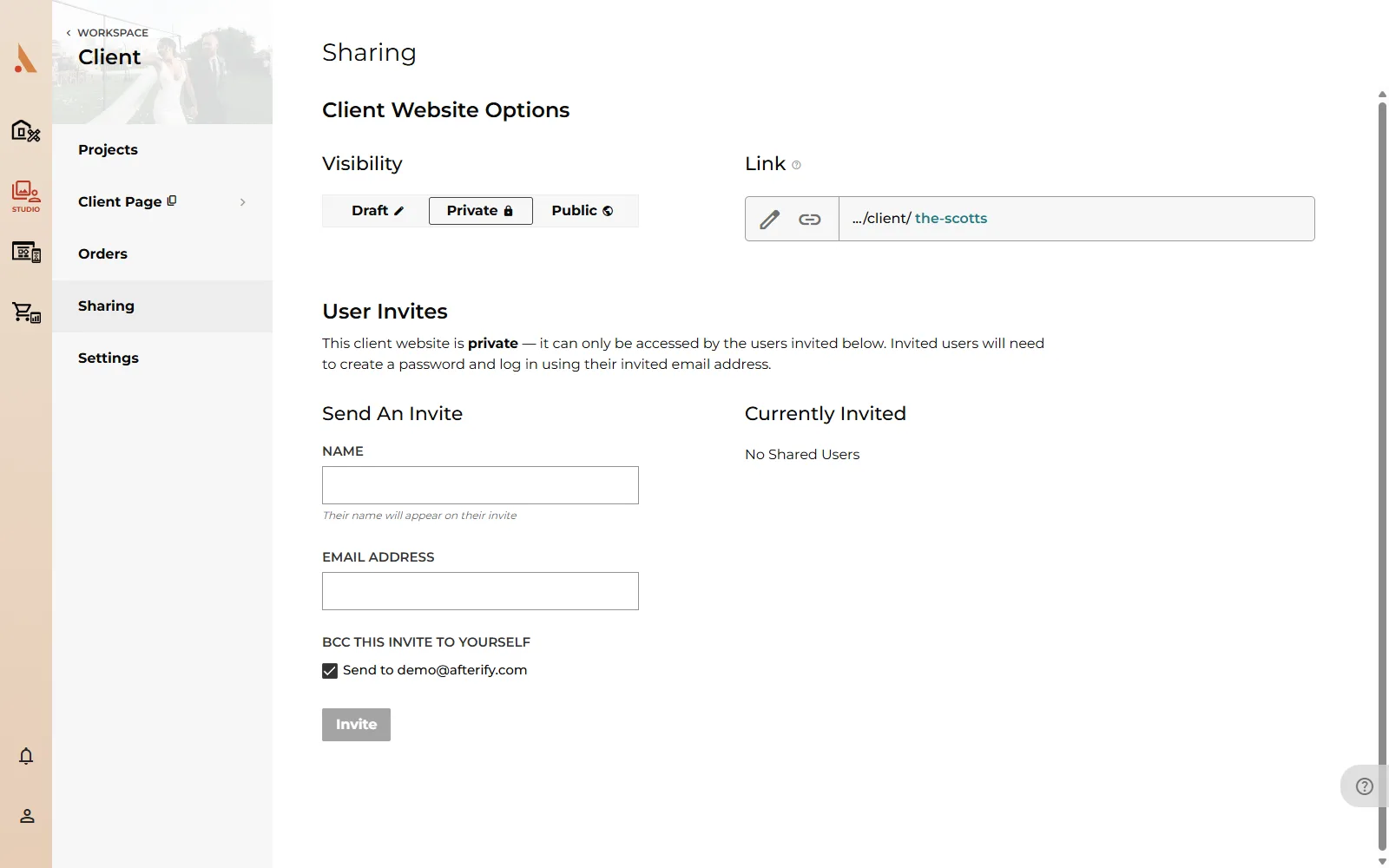 You can invite as many people as you like (partners, parents, planners), and each gets their own login.
What your client receives
The invite email greets them by the name you entered and contains a personal link with a single-use code. Opening it takes them to an account-creation page on your website with their name and email already filled in; they just choose a password and click Create Account. That signs them in and drops them straight into the gallery. If the client has only one project, they land directly in it.
The code works exactly once. How codes behave, including what happens if one is reused, is covered in Client access codes.
The Currently Invited list
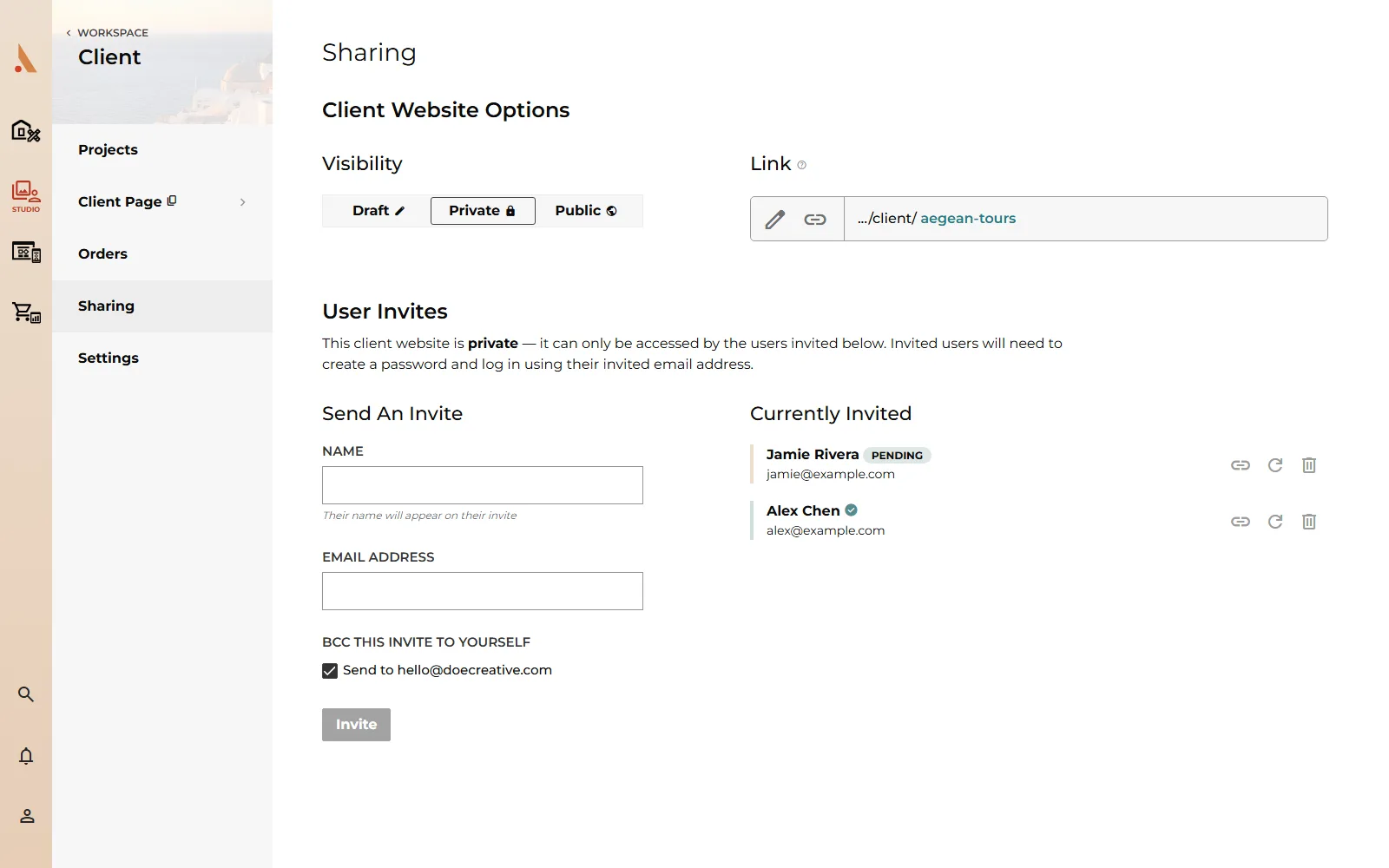
Everyone you've invited appears under Currently Invited with their name, email and status:
- Pending badge: the invite has been sent but the person hasn't created their account yet.
- A green check: they've created their account and have access.
Each row has three actions:
- Copy Invite Link: copies their personal account-creation link so you can pass it along yourself (in a text message, for example).
- Resend Invite: sends a fresh invite email with a new code.
- Remove Access: revokes a pending invite or an accepted user's access.
Resending and revoking are covered in detail in Resend or revoke access.
The list doesn't affect Public galleries; invites matter when the client is set to Private. See Share a gallery.
Related
Still stuck?
We're happy to help. Contact support and we'll get back to you as soon as we can.