Price sheets
Updated September 2026
A price sheet defines what a gallery sells and for how much. This article covers editing prices and sheet settings; if you haven't created a sheet yet, start with Create a product set.
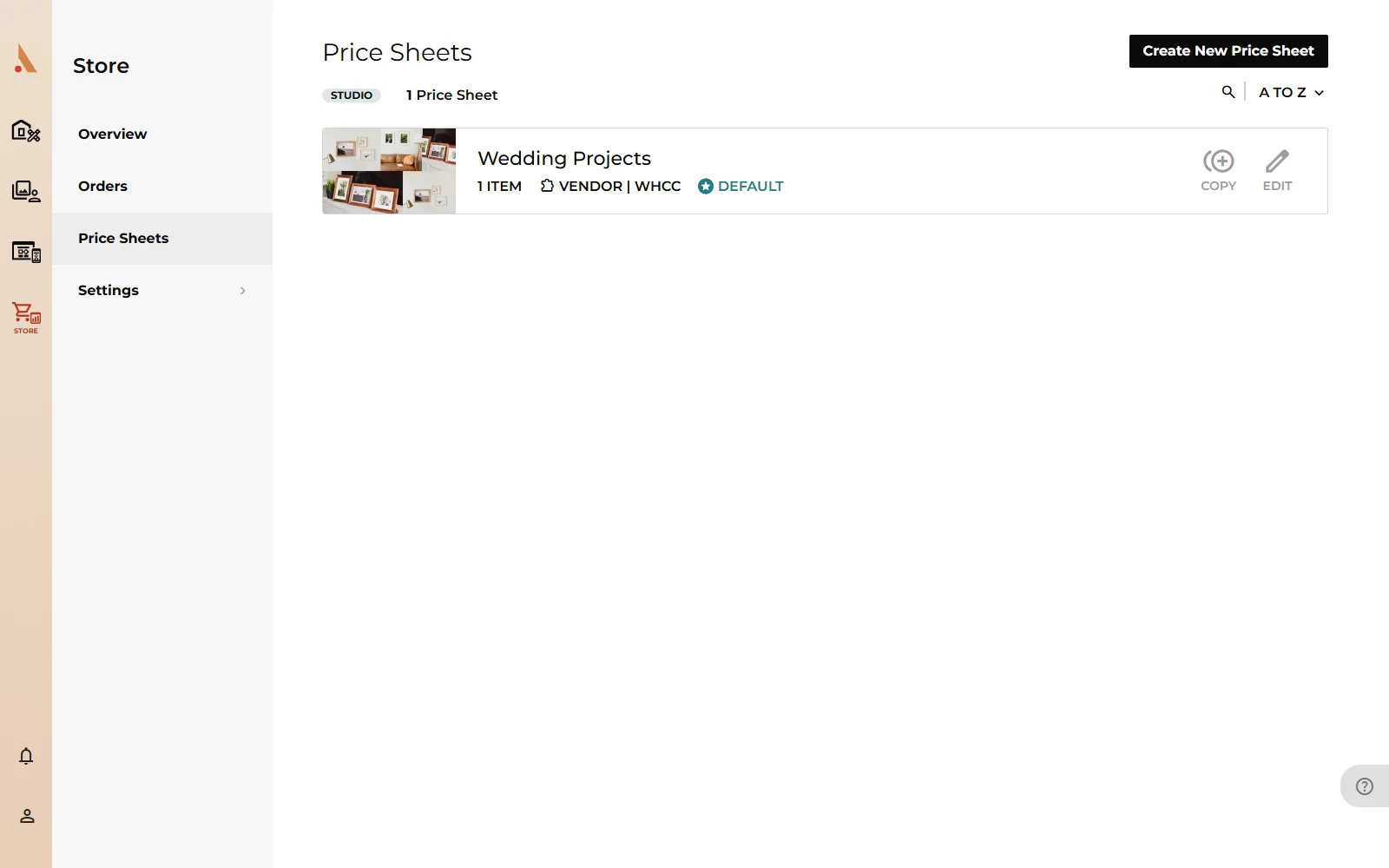
Open Store → Price Sheets and click a sheet (or its Edit button) to open it.
Sheet settings
At the top of a vendor sheet you'll find:
- Default Price Sheet: enable this switch to make the sheet your studio default. The default sheet is what new projects use unless you pick another one.
- Order Minimum and Minimum Amount: require a minimum order total before clients can check out.
Click the pencil icon next to the sheet name to rename it, and use Duplicate to copy a sheet as a starting point for another package. Delete removes it (projects using it are unlinked).
Set prices on a vendor sheet
Open a product on the sheet to reach its Print Sizes & Pricing table. Every size and paper combination shows three numbers:
- Base Cost: what the lab charges. You can't change this.
- Markup: the amount you add on top. This is your profit on the item.
- Sale Price: what your client pays (base cost + markup). Edit either the markup or the sale price and the other updates to match.
Sale prices can never go below the base cost.
On the Free plan an extra column shows Your Profit after the 15% commission. Upgrade your plan to remove the fee.
Apply bulk markup
Setting dozens of prices one by one is slow, so use the bulk tool:
- On the product's pricing page, click Apply Bulk Markup.
- Choose the Type of Markup: Amount (a flat dollar amount added to every base cost) or Percentage (a percentage of each base cost).
- Enter the value and click Apply.
Every size and style on the product is repriced at once. You can still fine-tune individual prices afterwards. Click Save when you're done; changes aren't stored until you save.
Prices on a Gallery Download sheet
Download sheets are simpler: check the download types you want to sell and type a price next to each one. The price is charged per download purchase.
Assign a price sheet to a project
Each project chooses which price sheet its gallery uses:
- In Studio, open the project and go to its settings.
- Under Store, set Status to Enabled.
- Pick the sheet in the Store Price Sheet dropdown.
If the dropdown is disabled, you only have one price sheet, and it's already in use. See Project settings for the rest of the project options.
Related
Still stuck?
We're happy to help. Contact support and we'll get back to you as soon as we can.