Create a product set
Updated September 2026
In Afterify, the set of products a gallery sells is defined by a price sheet. A price sheet holds the products, the options each product offers, and your prices. This article covers creating one and choosing products; for pricing details, order minimums and assigning sheets to projects, see Price sheets.
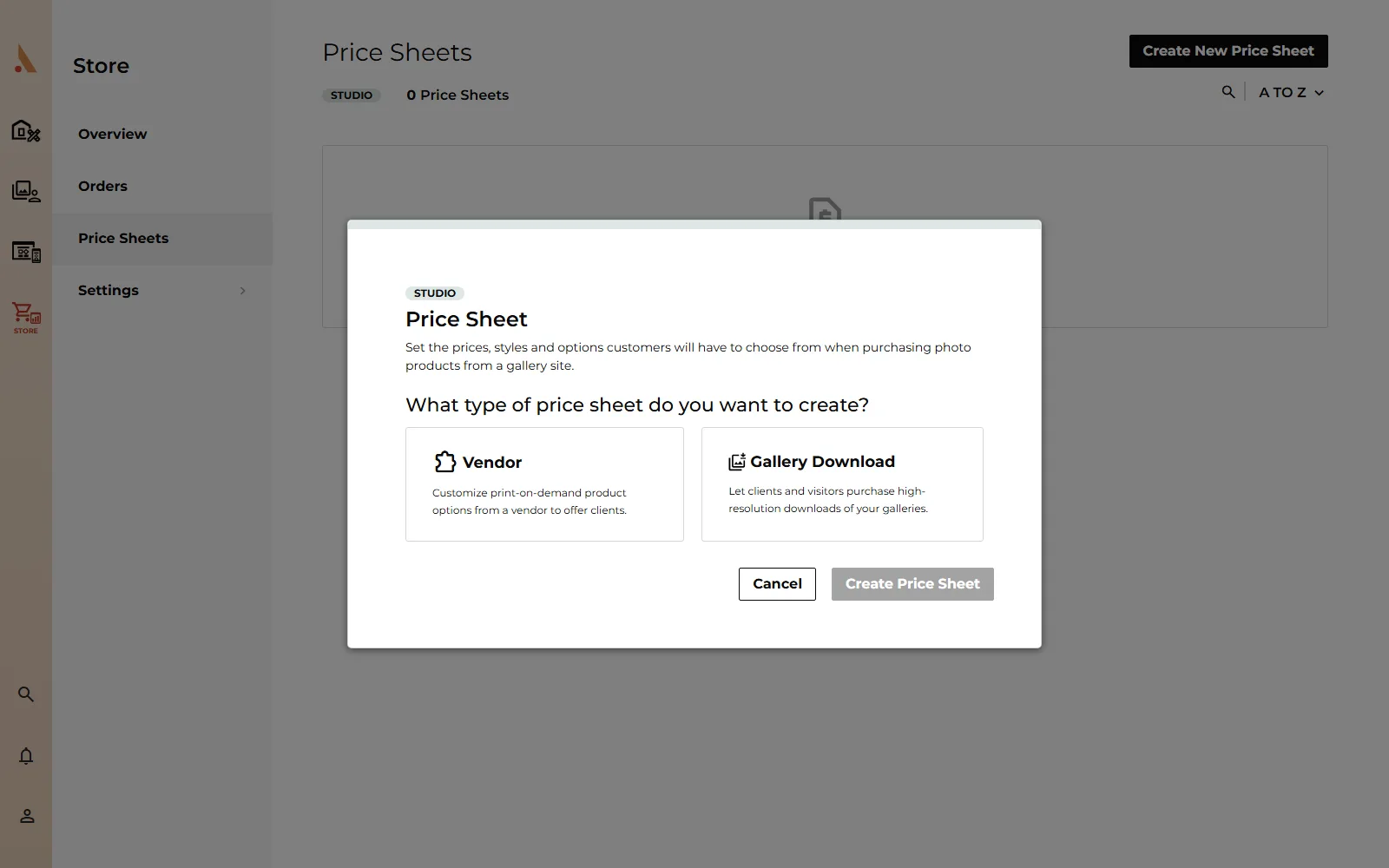
Choose a price sheet type
- Open Store in the sidebar, then click Price Sheets.
- Click Create New Price Sheet.
- Choose what type of price sheet you want to create:
- Vendor: customize print-on-demand product options from a vendor to offer clients. Prints are fulfilled by WHCC, a professional photo lab.
- Gallery Download: let clients and visitors purchase high-resolution downloads of your galleries.
- Click Create Price Sheet. The new sheet opens right away so you can set it up.
You can create as many price sheets as you like (for example, one with wedding pricing and another for mini sessions) and assign a different sheet to each project. Your first price sheet automatically becomes your default and is applied to all of your projects.
Vendor sheets: the product catalog
A new vendor sheet starts with a Featured group containing Everyday Prints. The vendor catalog currently offers photo prints in several product lines:
- Everyday Prints: standard photographic prints in common sizes
- Large Format: bigger wall-ready sizes
- Square: square crops
- Fine Art: archival fine-art papers
Click a product on the sheet (or its Edit button) to open it. Each product page shows a description and image, the Product Options it supports (for prints, that's Paper choices) and the Print Sizes & Pricing table where you tick the sizes you want to offer. Use Add all Print Sizes to enable everything at once.
When your client purchases a product, it's printed on demand by WHCC and shipped directly to them. See Print fulfillment.
Gallery Download sheets: download options
A Gallery Download sheet lists the download types you can sell, each with its own per-download price:
- Download Individual Photos - Print Resolution (no file compression)
- Download Individual Photos - Web Resolution (compressed files, smaller size)
- Gallery Downloads - Print Resolution
- Gallery Downloads - Web Resolution
Check the types you want to offer, set a price next to each, and click Save.
Creating your first price sheet completes the "Create a Product Set" step of the Set Up Your Store guide on your Store Overview.
Related
Still stuck?
We're happy to help. Contact support and we'll get back to you as soon as we can.