Connect Stripe
Updated September 2026
Afterify uses Stripe to provide a simple and secure checkout. Clients pay by card on a Stripe-hosted checkout page, and Stripe pays the proceeds out to your bank account. You connect your own Stripe account once, from the store settings.
Start the connection
- Open Store in the sidebar, then click Settings.
- You land on the Commerce page. Find the Payment Processor section.
- Click Connect Account. Afterify creates your connected account and sends you to Stripe's onboarding.
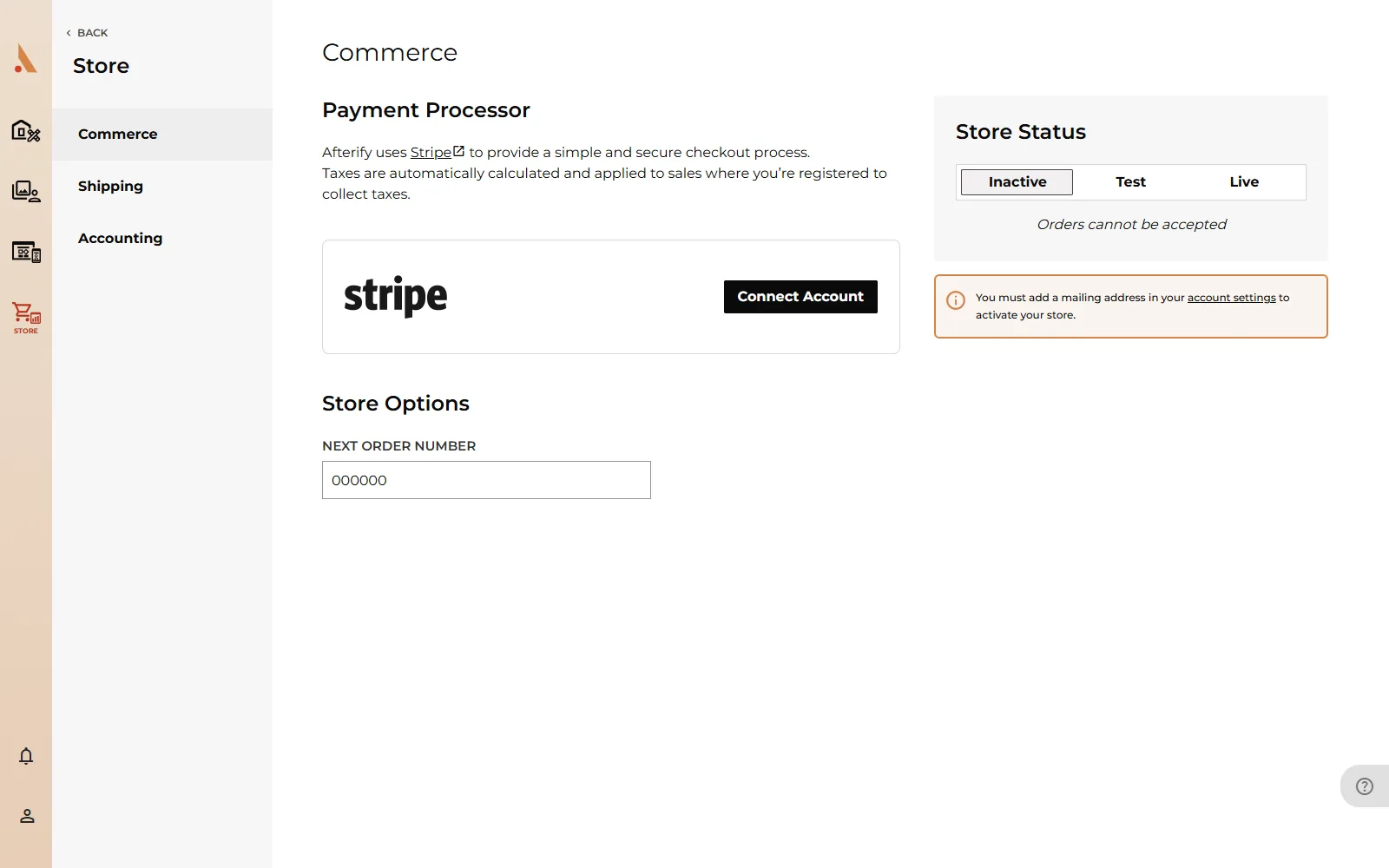 While the connection is being prepared the button reads One Moment.... Give it a few seconds and you'll be redirected automatically.
Complete Stripe's onboarding
On Stripe's pages you'll create a Stripe login (or sign in with an existing one) and provide the business details Stripe requires: your name, address, bank account for payouts, and identity verification. If you already have a Stripe account, sign in with that email during onboarding and the existing account details carry over.
When you finish, Stripe returns you to Afterify.
Check your connection status
Back on the Commerce page, the button under Payment Processor tells you where you stand:
- Connect Account: no account is connected yet.
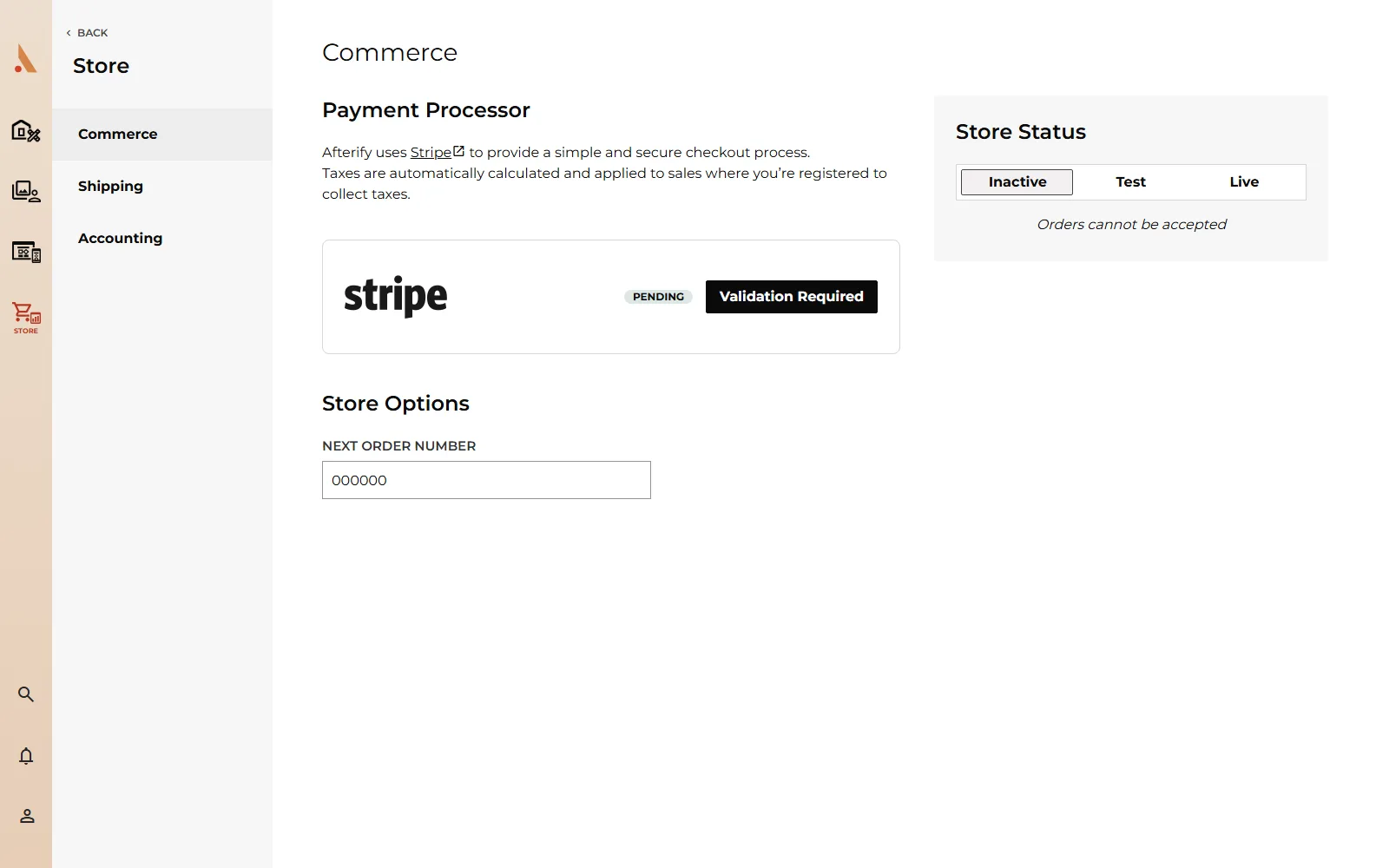
- Validation Required: you submitted your details but Stripe hasn't enabled charges yet. A Pending badge appears next to the Stripe logo. Click the button to return to Stripe and finish any outstanding requirements.
- Update Connection: you're fully connected and can accept payments. Click it any time to update your details on Stripe.
Afterify re-checks your account status automatically for a minute or two after you open the settings page, so a freshly completed onboarding usually flips to connected on its own. If it doesn't, reload the page.
Your store cannot be set to Live until the Stripe connection is complete. You'll see "A payment processor must be connected before you can activate your store" if you try.
How payouts work
When a client places an order, the payment goes to your connected Stripe account. For print orders, the product cost is covered by the client's payment and passed to the lab; the remainder, your markup, is yours. Stripe's transaction fee (2.9% + $0.30 per charge) also comes out of each payment, and on the Free plan a 15% Afterify commission applies.
Payout timing and bank details are managed in your own Stripe dashboard at stripe.com, which is also where you'll find Stripe's own reporting. For per-order profit numbers inside Afterify, open any order under Store → Orders; see Orders and invoices.
Related
Still stuck?
We're happy to help. Contact support and we'll get back to you as soon as we can.