Orders and invoices
Updated September 2026
Every purchase made through your galleries lands under Store → Orders. This is where you track fulfillment, look up what a client bought, and download a printable receipt.
The orders list
The list shows one row per order with its Date, Order #, Details (the customer and which client store they bought from), Type, Status and Total. Click any column heading to sort, use the search to find a customer, and page through with the controls at the bottom (25, 50, 100 or 200 per page).
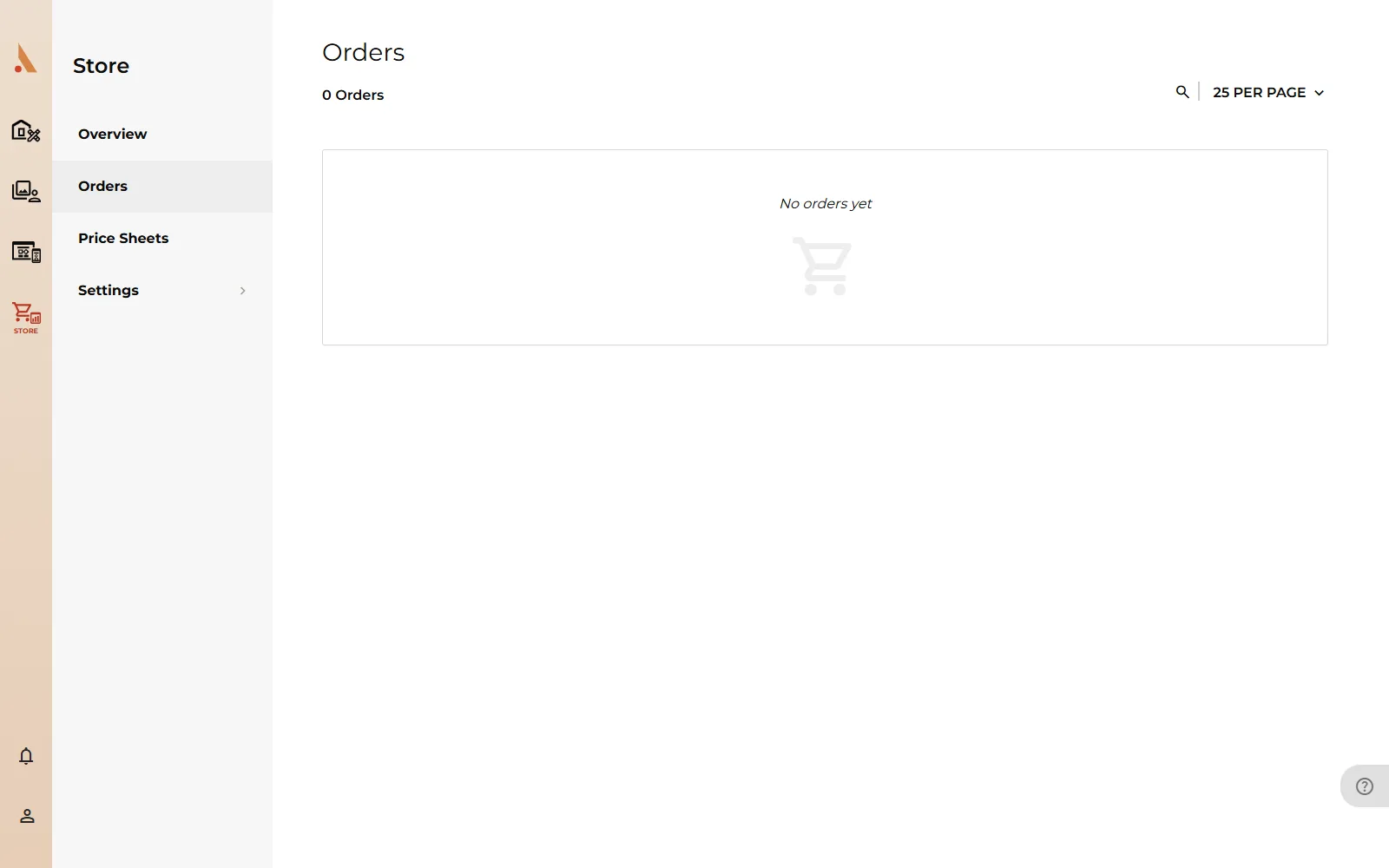 Order types tell you what kind of fulfillment is involved:
- Vendor | WHCC: physical prints fulfilled by the lab.
- Digital download: gallery or photo downloads, delivered automatically.
- Mixed: an order containing both.
Recent orders also appear on your Store Overview, along with revenue and order stats. See the overview's Recent Orders panel and click View all orders to get back to the full list.
Order statuses
- Unfulfilled: paid, but fulfillment hasn't finished yet.
- Processing: the order is being worked on (for prints, it's with the lab).
- Shipped: the lab has shipped the package; a tracking number is on the order.
- Complete: a digital order that has been delivered.
- Refunded / Cancelled: the order was refunded or cancelled.
If a print order shows a vendor rejection or a payment shows as failed, open the order for details, and contact support if it isn't clear how to proceed.
The order detail page
Click an order to open it. The detail page shows:
- Order Information: the customer's name and email, and which client store the order came from (linked to the client in your Studio).
- Payment Information: the billing details plus a breakdown ending in Your Profit. Hover the Cost & Fees help icon to see the components: the WHCC product cost, the Stripe transaction fee, taxes, shipping, and the Afterify commission on Free plan stores.
- Shipping Information: the shipping address, the delivery service with its estimate, and the Tracking Number as a clickable link once the lab ships.
- All Items Purchased: every item with its options and price.
Print or save an invoice
On the order detail page, click Print Receipt. Afterify generates a PDF (named like Afterify-Order#000123) with the order number, date, customer, billing details, and the subtotal, taxes, shipping and total. Print it or attach it to an email as the client's invoice.
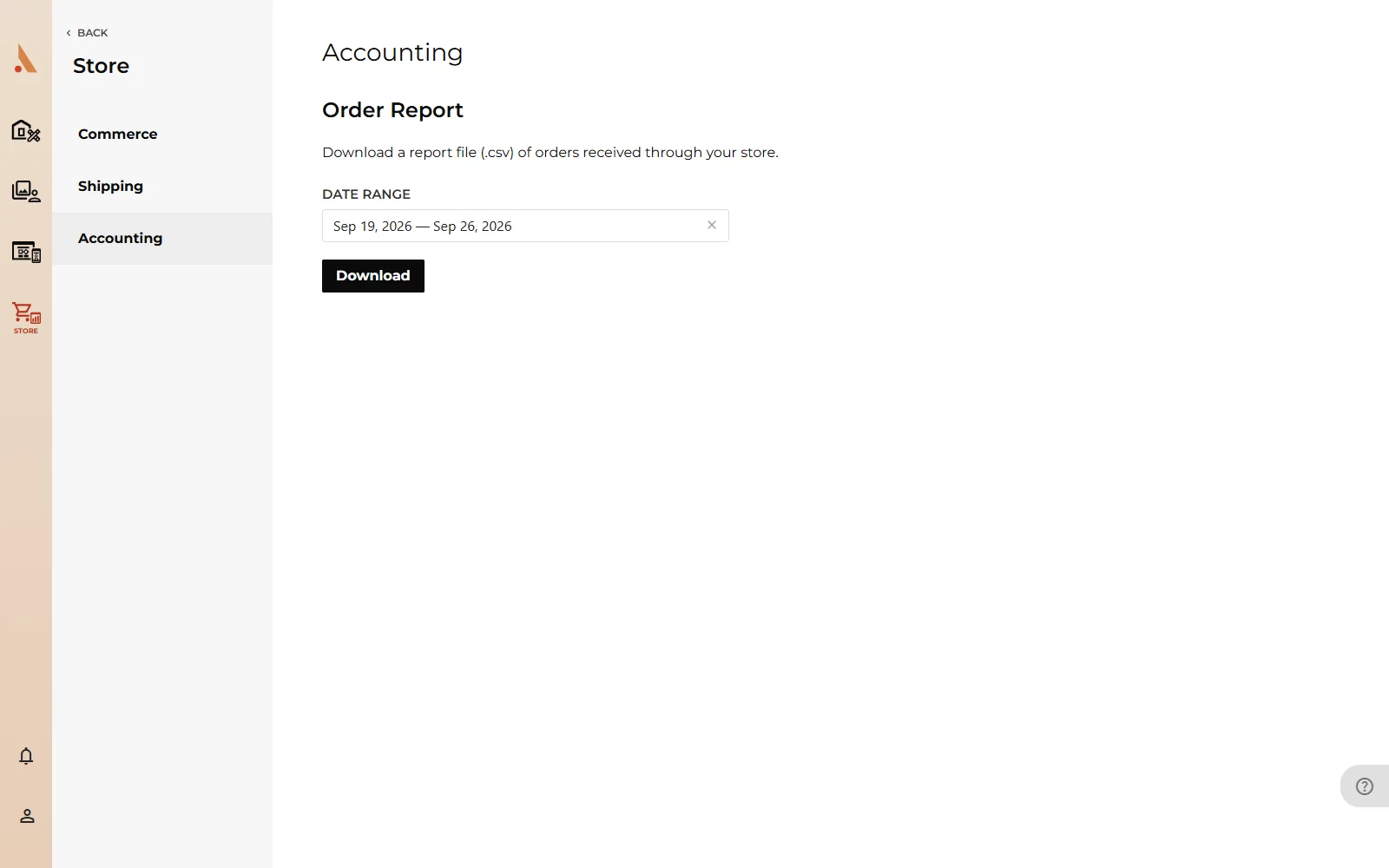
Need totals across many orders instead? Store → Settings → Accounting exports a CSV order report for any date range.
What your client sees
After checkout, clients land on a confirmation page showing Order Complete with their order number, and they receive an email confirmation. For digital purchases, a Start Download link takes them to the Downloads area of their account, where the files remain available. Order numbers are sequential six-digit numbers; you can set where the sequence continues from with Next Order Number under Store → Settings.
Related
Still stuck?
We're happy to help. Contact support and we'll get back to you as soon as we can.