Test and publish your store
Updated September 2026
Before your store takes real money, you can run the whole purchase flow in test mode: browse a gallery as a client, add products to the cart and check out, with no payment processed. When everything looks right, one switch takes you live.
Before you start
Make sure the earlier setup steps are done:
- A price sheet exists and is assigned to at least one project with its Store status enabled.
- Stripe is connected. Without it you'll see "A payment processor must be connected before you can activate your store".
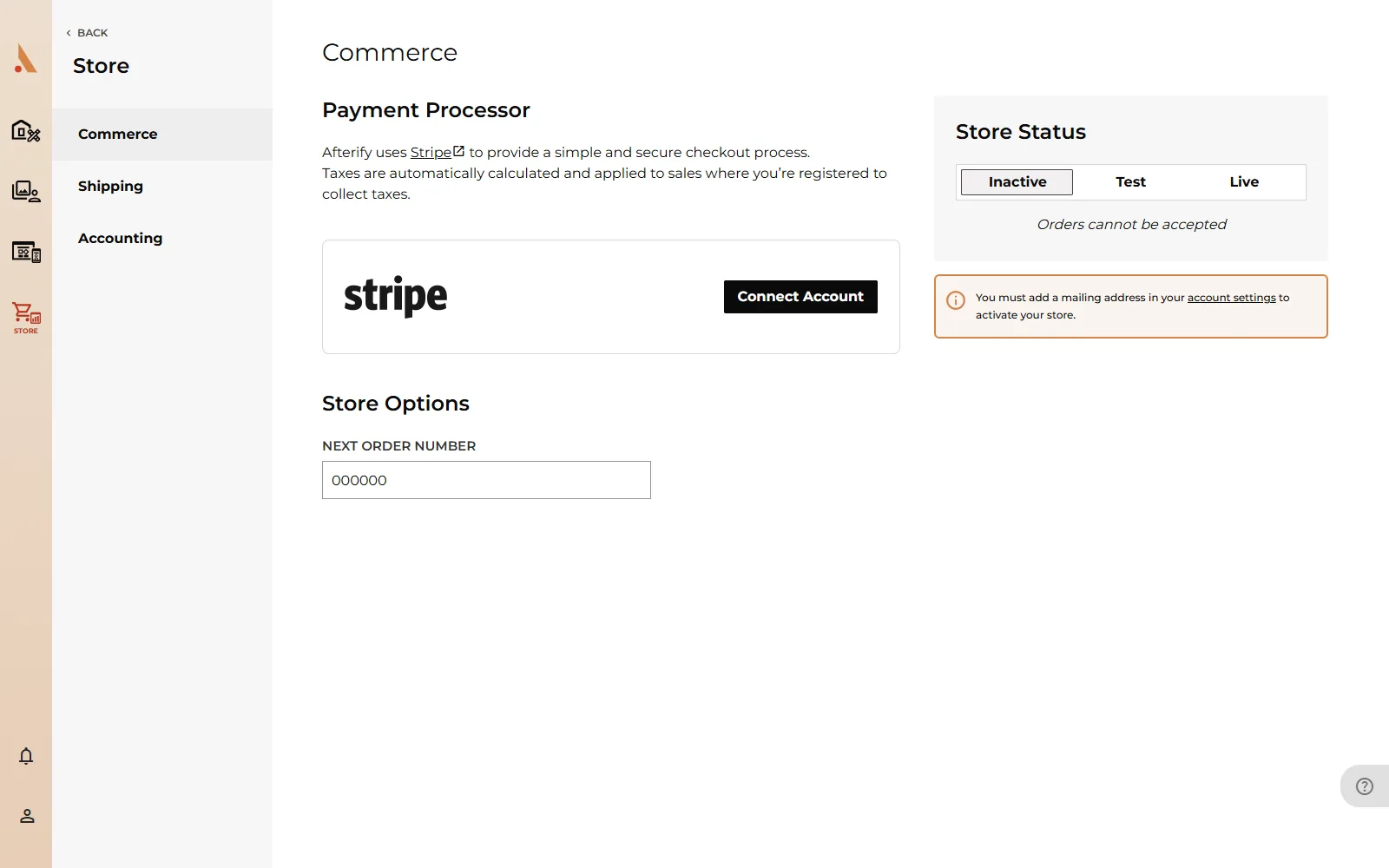
- A mailing address is saved in your account settings. If it's missing, the settings page shows "You must add a mailing address in your account settings to activate your store".
- Tax rates are entered for the states where you collect tax.
The Store Status switch
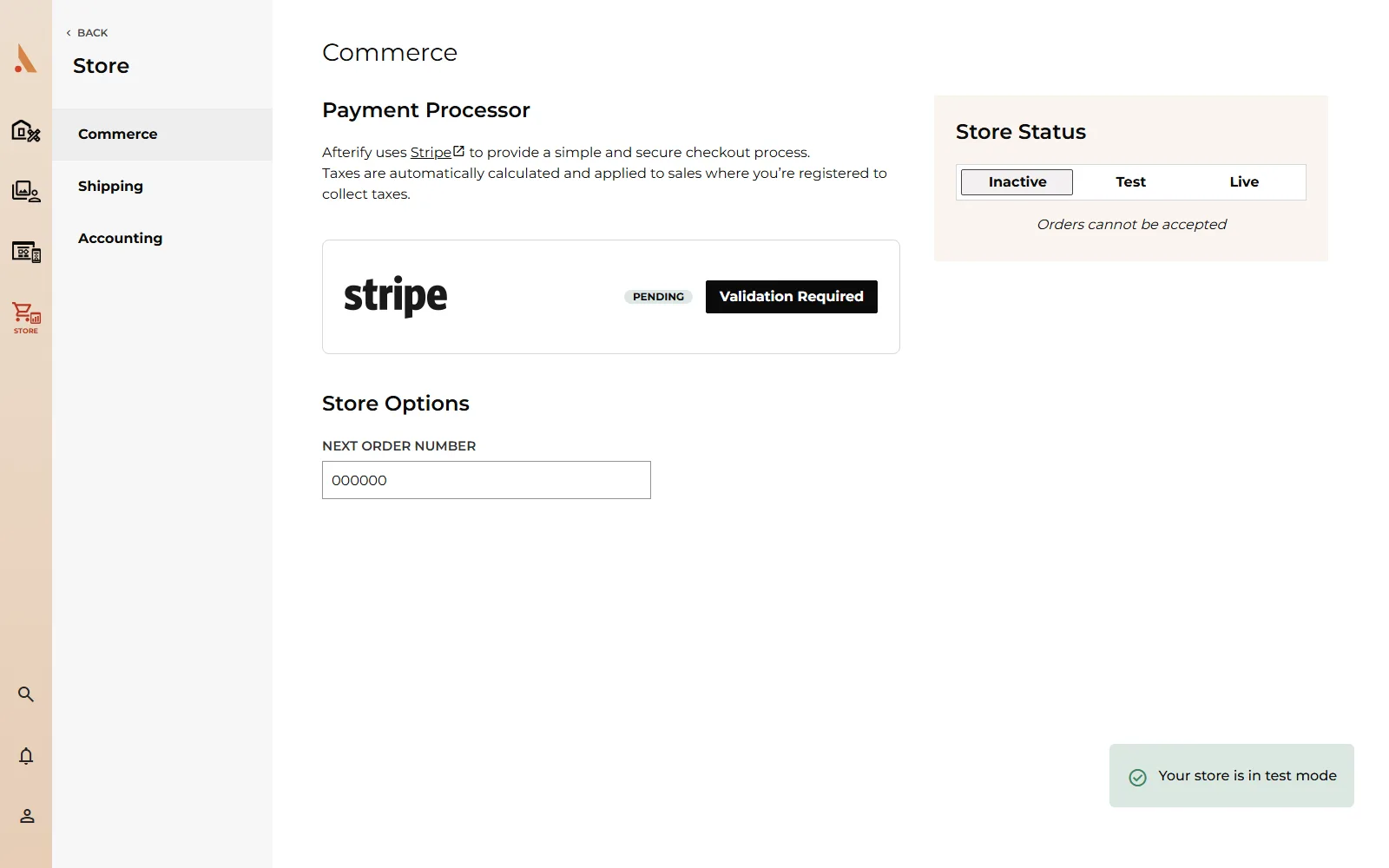
Open Store → Settings. On the Commerce page, the Store Status block has a three-way switch:
- Inactive: orders cannot be accepted.
- Test: test orders can be placed but no payment will be processed.
- Live: payments are being accepted.
Run a test purchase
- Set the Store Status to Test. You'll see a confirmation that your store is in test mode.
- Open one of your published galleries the way a client would, and add a product or a gallery download to the cart.
- Check out. In test mode the checkout skips payment entirely and takes you straight to the Order Complete confirmation page with an order number.
- Back in the app, open Store → Orders. Your test order is listed, and for a digital purchase the download is delivered just like a real one.
Test orders use your real order-number sequence, so a practice order today means your first live order won't be #000001. If that matters to you, adjust Next Order Number on the Commerce page before going live.
Print products are not sent to the lab in test mode, so a test order is a checkout rehearsal, not a proof print. To evaluate physical print quality, place a real order once you're live.
Go live
- On Store → Settings, set the Store Status to Live. The app confirms with "Your store is now live!".
- Visit a gallery and make sure the store options appear for clients.
- Optionally place a small real order yourself to verify the end-to-end flow, payment included.
While the store is live, the orders list shows your live orders; test orders are only shown while the store is in test mode, so don't worry if your rehearsal orders seem to disappear after switching.
On the Free plan, live sales carry a 15% commission, and the Commerce page reminds you of this while your store is active. Upgrade under your billing settings to remove it.
Related
Still stuck?
We're happy to help. Contact support and we'll get back to you as soon as we can.