Set up taxes
Updated September 2026
Afterify collects sales tax for you at checkout. You tell it which US states you're registered to collect tax in and at what rate; taxes are then automatically calculated and applied to sales where you're registered to collect them. Buyers in other states aren't charged tax.
Add a tax rate
- Open Store in the sidebar, then click Settings.
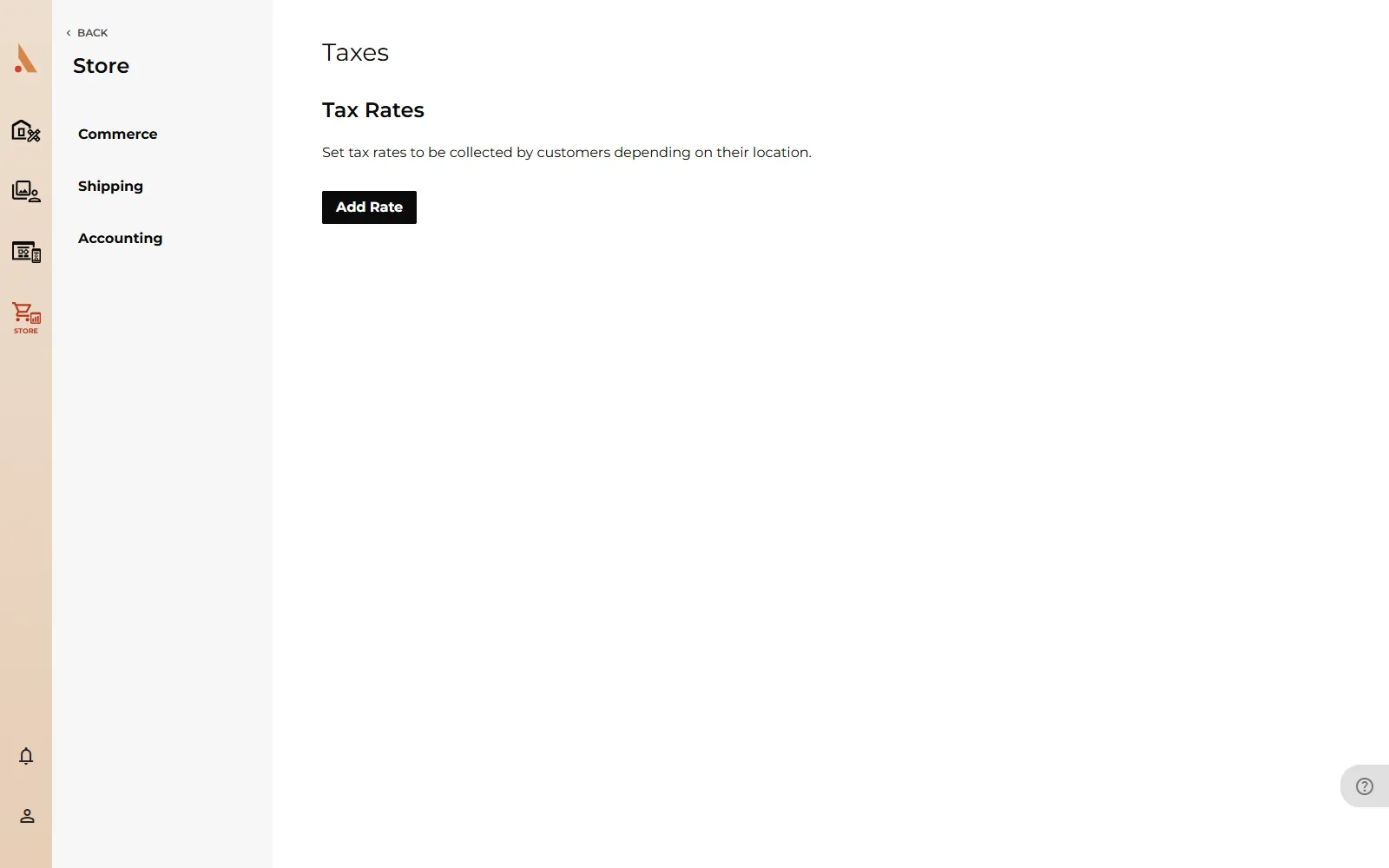
- Go to the Taxes page (
app.afterify.com/store/settings/taxes). The Set Up Your Store guide's "Enter your tax information" step links straight there. - Click Add Rate.
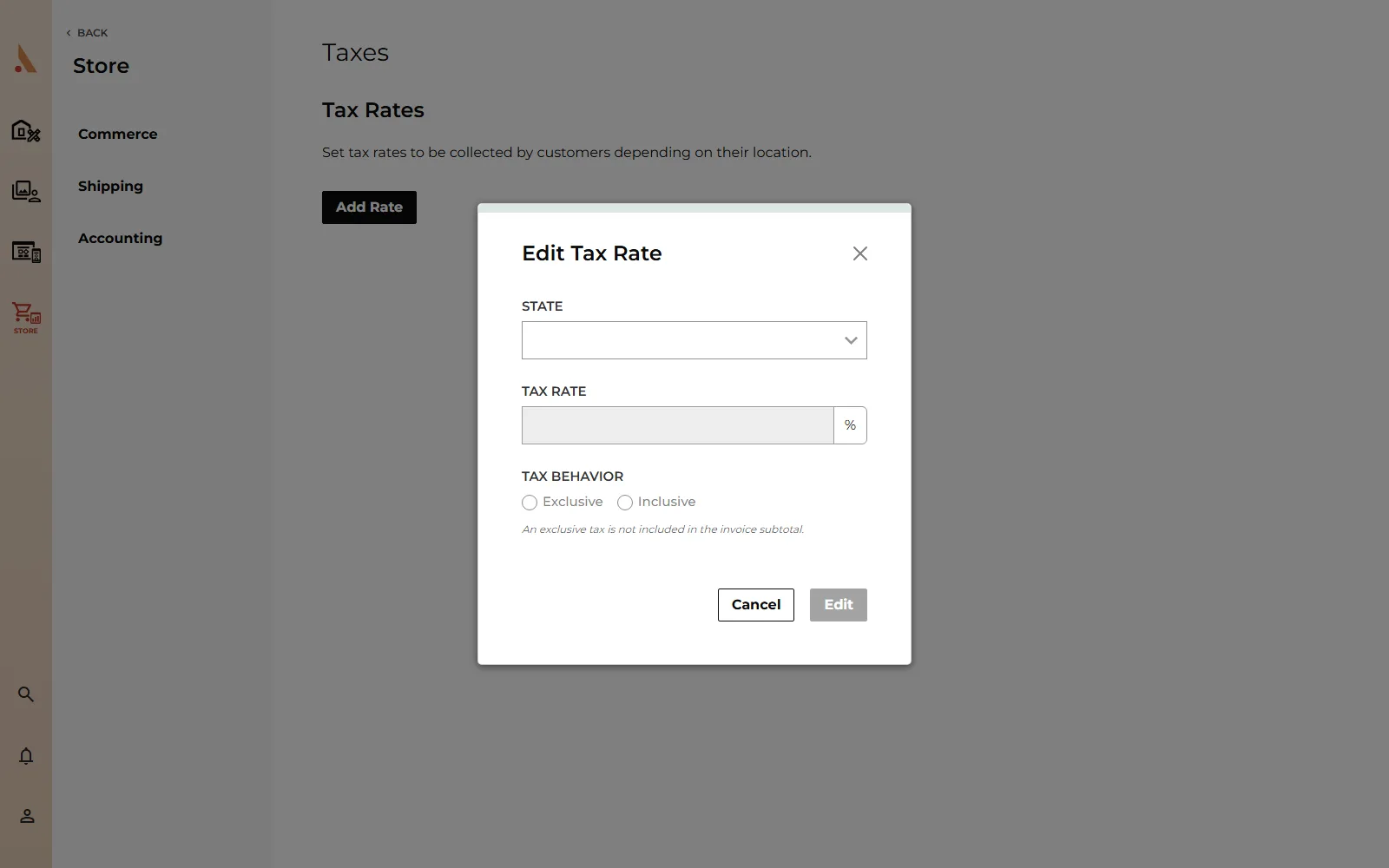
- Choose the State. Each state can only have one rate, so states you've already added no longer appear in the list.
- Enter the Tax Rate as a percentage.
- Pick the Tax Behavior:
- Exclusive: the tax is not included in the invoice subtotal. It's added on top at checkout. This is the common choice in the US.
- Inclusive: the tax is included in the invoice subtotal. Your listed prices already contain it.
- Click Add.
The rate appears in your Tax Rates list showing the state, the percentage and whether it's inclusive or exclusive.
Adding your first rate completes the "Enter your tax information" step of the Set Up Your Store guide.
Changing a rate
A saved rate can't be edited in place. To change one, click Delete next to it, then add the state again with the new rate. Deleting a rate stops tax collection for that state on future orders; past orders are unaffected.
When to consult an accountant
Afterify applies the rates you enter, but it can't tell you what those rates should be. Sales tax rules for photography vary a lot:
- Whether you must collect tax in a state depends on your registration and "nexus" there, not just where you live.
- Some states tax physical prints but not digital downloads; others tax both.
- Local (city or county) rates can apply on top of the state rate.
If you're unsure which states to register in or what rate to enter, talk to an accountant or your state's department of revenue before turning your store live. Entering a single combined percentage per state is your responsibility; Afterify doesn't file or remit tax returns for you.
Related
Still stuck?
We're happy to help. Contact support and we'll get back to you as soon as we can.