Categories and drafts
Updated September 2026
Categories keep your blog browsable, and the three post statuses control exactly when each post goes public. Both live a click away from the Posts list at Website → Blog.
Create and manage categories
The Blog sidebar lists your categories under Categories:
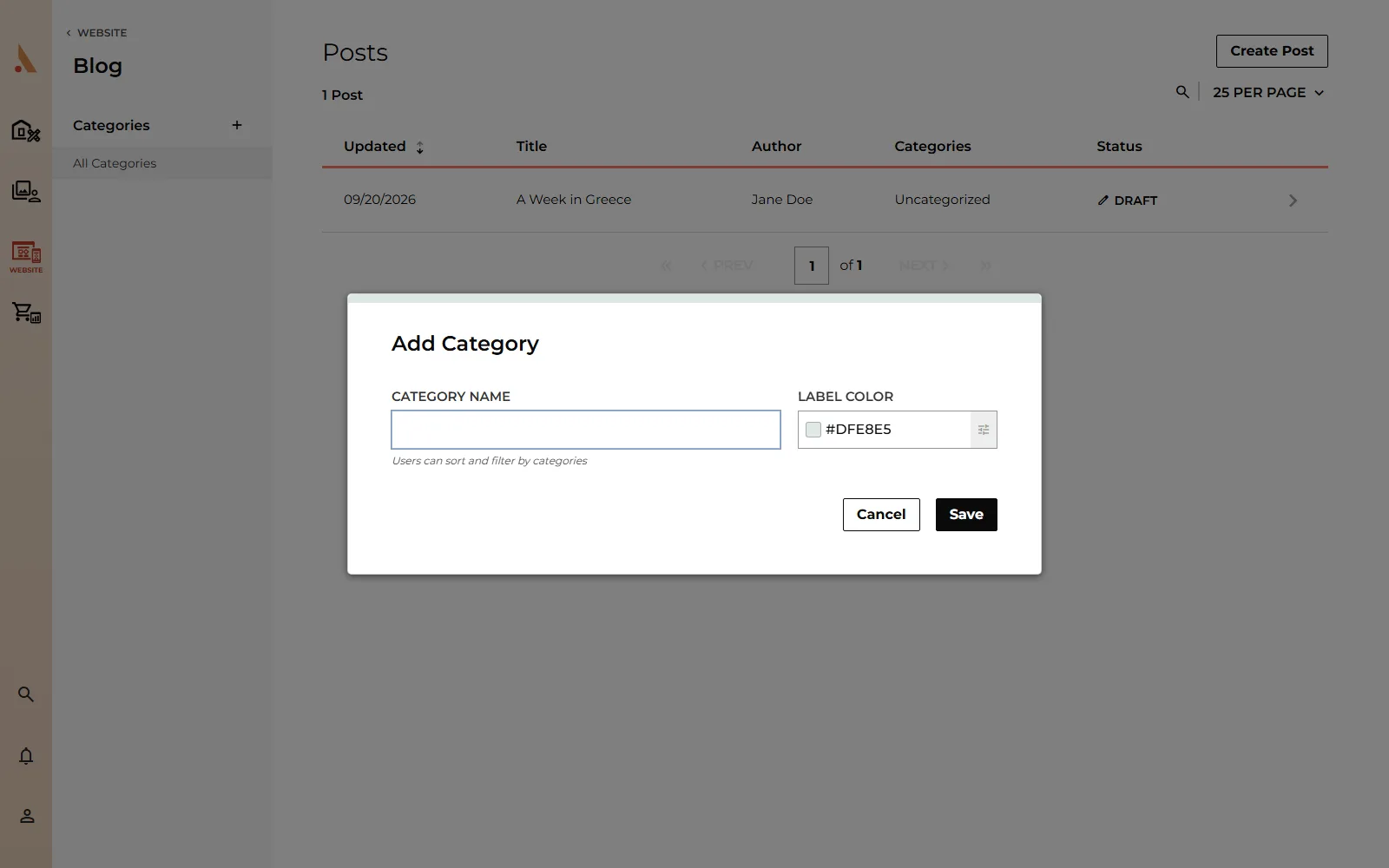
- Click the + button next to Categories.
- Enter a Category Name and pick a Label Color.
- Click save. The category appears in the sidebar and in the post editor's Categories field.
From the same list you can:
- Filter the Posts table: check one or more categories to see only matching posts, or click All Categories to clear the filter.
- Reorder categories by dragging; this order carries through to category filters on your site.
- Edit a category (pencil icon) to rename it or change its color, or delete it from the same modal (Delete Category, with a confirmation).
Assign categories to a post
In the post editor, open Post Details and pick any number of categories. Categories are used for sorting and filtering on your blog, and to choose which posts appear in a post's Related Posts section. Posts without a category show as "Uncategorized" in your Posts list.
Draft, Scheduled and Published
Every post has one status, set from the Post Status dropdown in Post Details:
- Draft: visible only to you. New posts start here.
- Scheduled: goes public automatically at the date and time you choose. Picking Scheduled reveals a Publish Date picker.
- Published: live on your blog right now.
The status (and a scheduled post's date and time) shows on each row of the Posts list, so you can see the state of your whole blog at a glance.
A few rules keep statuses predictable:
- Status changes apply when you Save the post.
- A post set to Scheduled without a publish date is saved as a Draft, since there's nothing to schedule it for.
- Un-publishing asks for confirmation: switching a published post to Draft shows Change Status to Draft, because it hides the post from your website immediately.
- Re-publishing a post keeps its original publish date, so it won't jump to the top of your feed.
Want to line up a season of content? Write everything as drafts, then schedule each post. Scheduled posts publish on time without you logging in.
Related
Still stuck?
We're happy to help. Contact support and we'll get back to you as soon as we can.