App not updating
Updated September 2026
Afterify runs as a web app that caches itself on your device so it loads fast and works as an installed app. Occasionally that cache holds on to an old version, which shows up as missing features, odd layouts, or behavior that doesn't match these help articles.
The "new version ready" prompt
When an update is available, a banner appears at the top of the app: "A new version of Afterify is ready. Click to update."
- Click the banner to apply the update; the app reloads on the new version.
- Clicking Later dismisses it, and the update is applied the next time the app fully restarts.
If you tend to keep one tab open for days, click the banner when you see it. Running an old version alongside a new backend is where most "it worked yesterday" glitches come from.
The app looks stale or broken
If there's no update banner but the app seems out of date or won't load properly:
- Reload the page. Then hard-refresh: Ctrl+Shift+R (Windows) or Cmd+Shift+R (Mac) to bypass the browser cache.
- Close every Afterify tab and window, wait a few seconds, and open the app again. A waiting update installs when the last tab closes.
- If you installed Afterify as an app on your desktop or phone, quit the installed app fully and relaunch it. If it's still stale, uninstall it and install it again from the browser; your data lives in your account, so nothing is lost. See Install the Afterify app.
- Clear site data as a last resort: in your browser's site settings for
app.afterify.com, clear the cached data, then reload and sign in again.
The offline banner
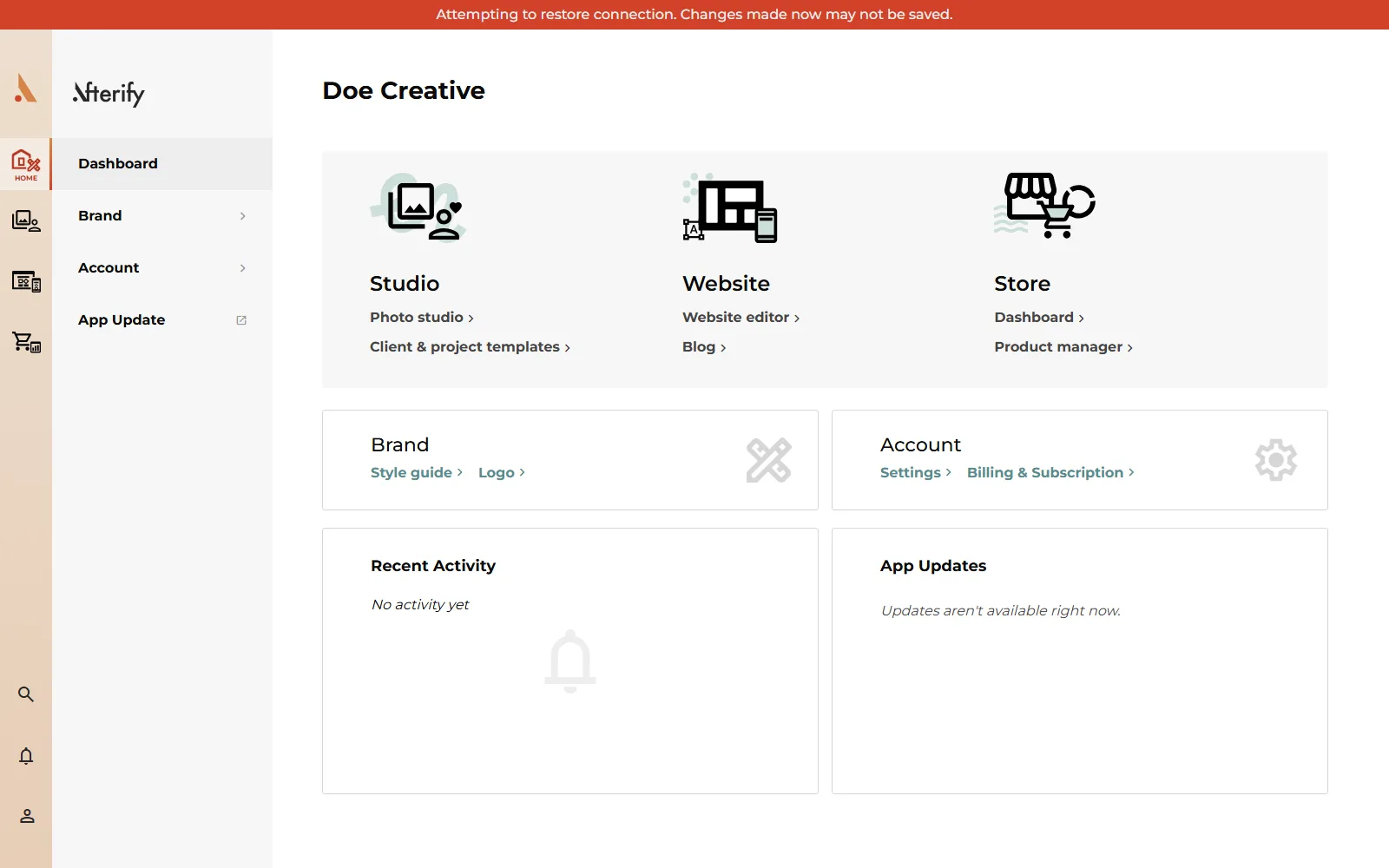
A different banner, "Attempting to restore connection. Changes made now may not be saved.", means the app has lost its network connection. It isn't an update problem:
- Check your internet connection; the banner disappears on its own once the connection is back.
- Hold off on edits and uploads while it's showing; changes made now may not be saved. Re-check anything you changed right around the disconnect after you're back online.
If the offline banner appears constantly on a stable connection, a firewall, VPN or browser extension may be blocking the app's connection; try a private window or another network to narrow it down, and contact support if it persists.
Related
Still stuck?
We're happy to help. Contact support and we'll get back to you as soon as we can.