Upload problems
Updated September 2026
Uploads normally run in the background while you keep working; the progress indicator shows each file as it lands. When they stall or fail, one of the causes below is almost always the reason.
Check your connection first
If Afterify loses its connection, a banner appears at the top of the app: "Attempting to restore connection. Changes made now may not be saved." Uploads pause with it. Wait for the banner to clear (or fix your network) and re-add any files that didn't finish. Large shoots over hotel or venue Wi-Fi are the classic culprit; if you can, upload over a wired or stable connection and leave the tab open until the progress indicator completes.
Use a supported file format
Photo uploads accept JPEG, PNG and GIF files. RAW files (CR2, NEF, ARW and similar), TIFFs, PSDs and HEIC are not accepted; export them to JPEG first. Files that silently never appear in the grid are usually an unsupported format rather than a failed transfer.
Video and audio files can only be uploaded in the website media manager, and only on paid plans; the Free plan is images-only.
You've hit a plan limit
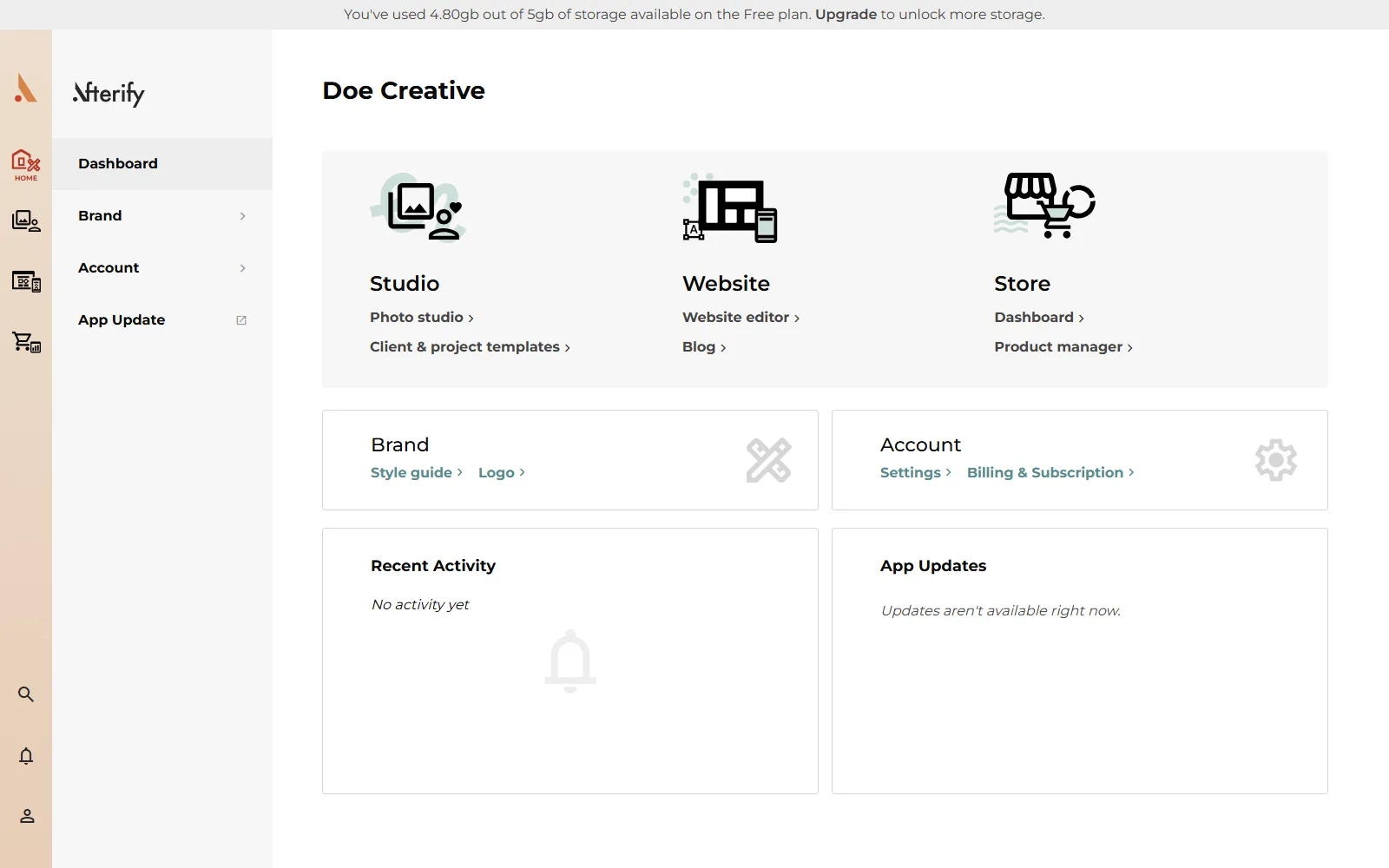
On the Free plan a banner across the top of the app tracks your usage, for example "You've used 4.8 GB out of 5 GB of storage available on the Free plan." When storage (or another plan limit) is reached, new uploads are blocked until you make room or upgrade:
- Delete projects or photos you no longer need. Storage is counted from your uploaded originals.
- Or upgrade under Upgrade in the banner (it links to your billing settings). Paid plans include 100 GB (Amateur), 500 GB (Professional), or unlimited storage.
See Storage and plan limits for how usage is counted.
Browser issues
If your connection and plan are fine but uploads still hang:
- Reload the app. If an update banner appears ("A new version of Afterify is ready"), click it; a stale version can misbehave. See App not updating.
- Try a private/incognito window. If uploads work there, a browser extension (ad blockers and privacy tools especially) is interfering; allowlist
app.afterify.com. - Try another browser. Afterify works best in current versions of Chrome, Edge, Firefox and Safari.
- Very large batches can overwhelm slow machines; upload in smaller groups of a few hundred photos.
Still stuck?
If a specific file fails repeatedly while others succeed, the file itself may be corrupt; re-export it from your editor. If nothing uploads at all after the steps above, contact support with the browser you're using and roughly when the uploads failed, and we'll check it from our side.
Related
Still stuck?
We're happy to help. Contact support and we'll get back to you as soon as we can.