Dashboard overview
Updated September 2026
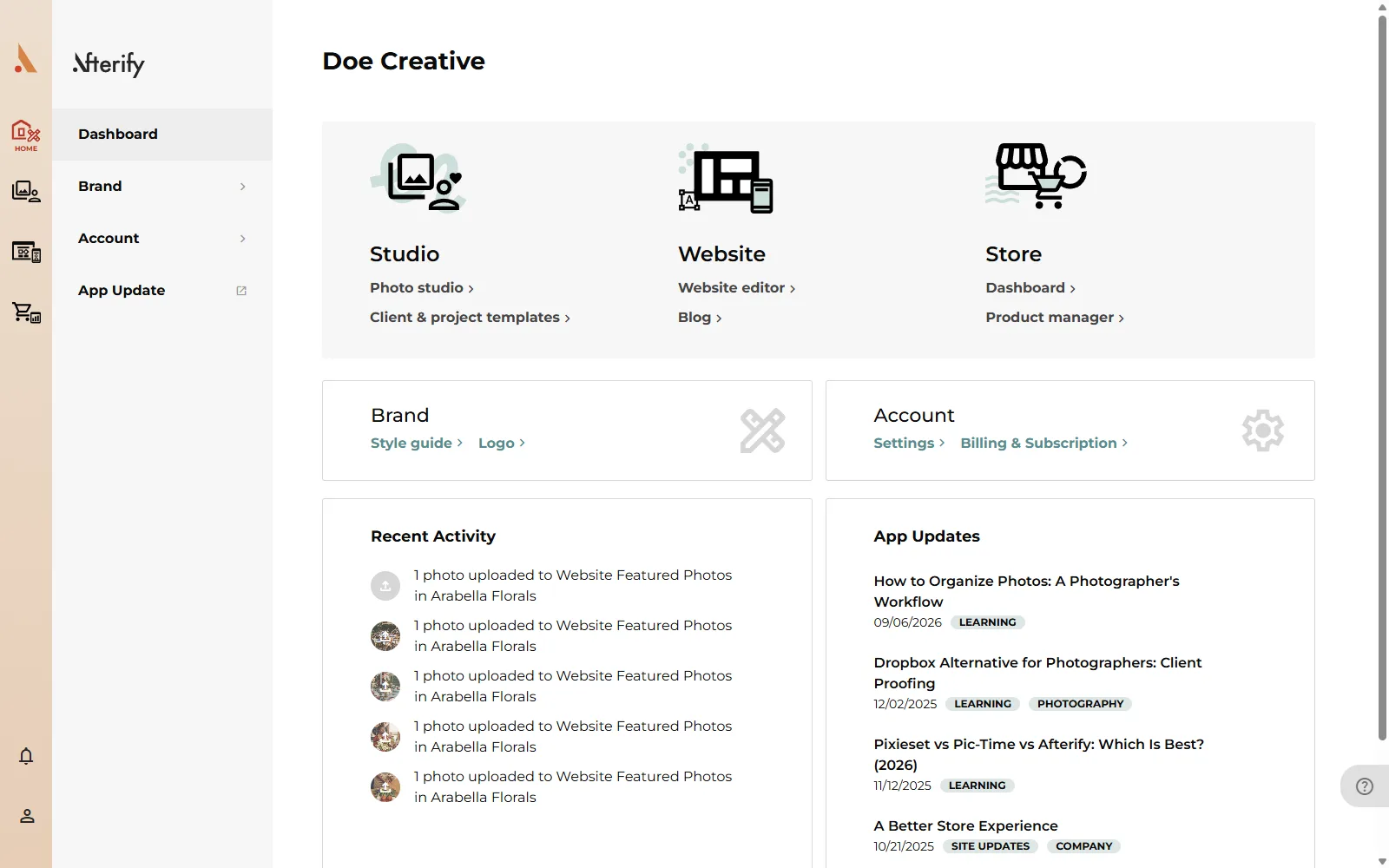
The Home section is your dashboard, the page you land on when you sign in or click the Afterify logo. It's built for jumping off: quick links into every section, your latest client activity, and shortcuts to the settings you'll reach for most.
What's on the dashboard
At the top you'll see your business name (or your brand logo, once you've uploaded one on a paid plan). Below that:
- Section shortcuts: three large tiles for Studio (Photo studio, Client & project templates), Website (Website editor, Blog) and Store (Dashboard, Product manager).
- Brand panel: links to your Style guide and Logo. See Brand settings.
- Account panel: links to Settings and Billing & Subscription.
- Recent Activity: the latest events on your galleries, such as photos your clients favorited, commented on or downloaded, plus your own uploads. Click any entry to jump straight to that client or project.
- App Updates: recent Afterify release notes from the Afterify blog.
The Store setup guide
When you first open the Store section, a Set Up Your Store checklist appears above the overview. It tracks four steps and fills in a progress circle as you complete them:
- Create a Product Set: sell custom products and print-on-demand merchandise.
- Connect your payment options: let Afterify know how you want to get paid.
- Enter your tax information: collect sales tax with a few setup steps.
- Once those are done, the final step appears: You're ready to start selling! with a Publish Your Store button.
Click any step to jump to the right page, or click Dismiss to hide the checklist for now. It comes back until every step is complete.
There's no equivalent checklist for Studio; the Quick start guide covers the same ground: create a client, upload photos into a project, and explore gallery templates.
The account dropdown
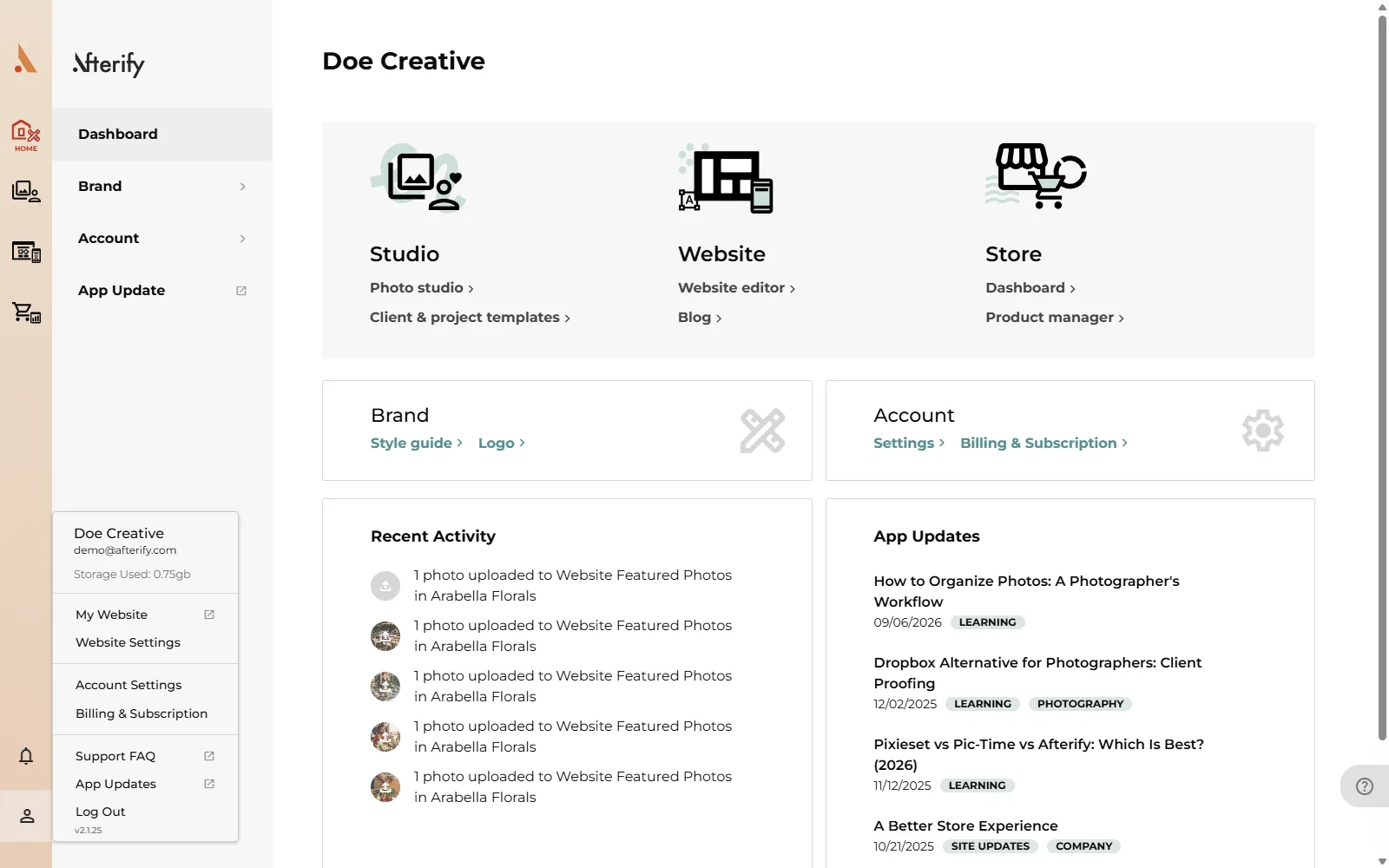
The person icon at the top right works from every page. It shows your business name, login email and total Storage Used, plus links to My Website, Website Settings, Account Settings, Billing & Subscription, Support FAQ, App Updates and Log Out. The app version number sits at the bottom, which is handy if you ever contact support.
Related
Still stuck?
We're happy to help. Contact support and we'll get back to you as soon as we can.