How Afterify is organized
Updated September 2026
Everything you upload to Afterify lives inside a simple four-level hierarchy:
Client → Project → Collection → Photo
Once this structure clicks, the whole Studio section makes sense, and so does how galleries get shared.
Clients
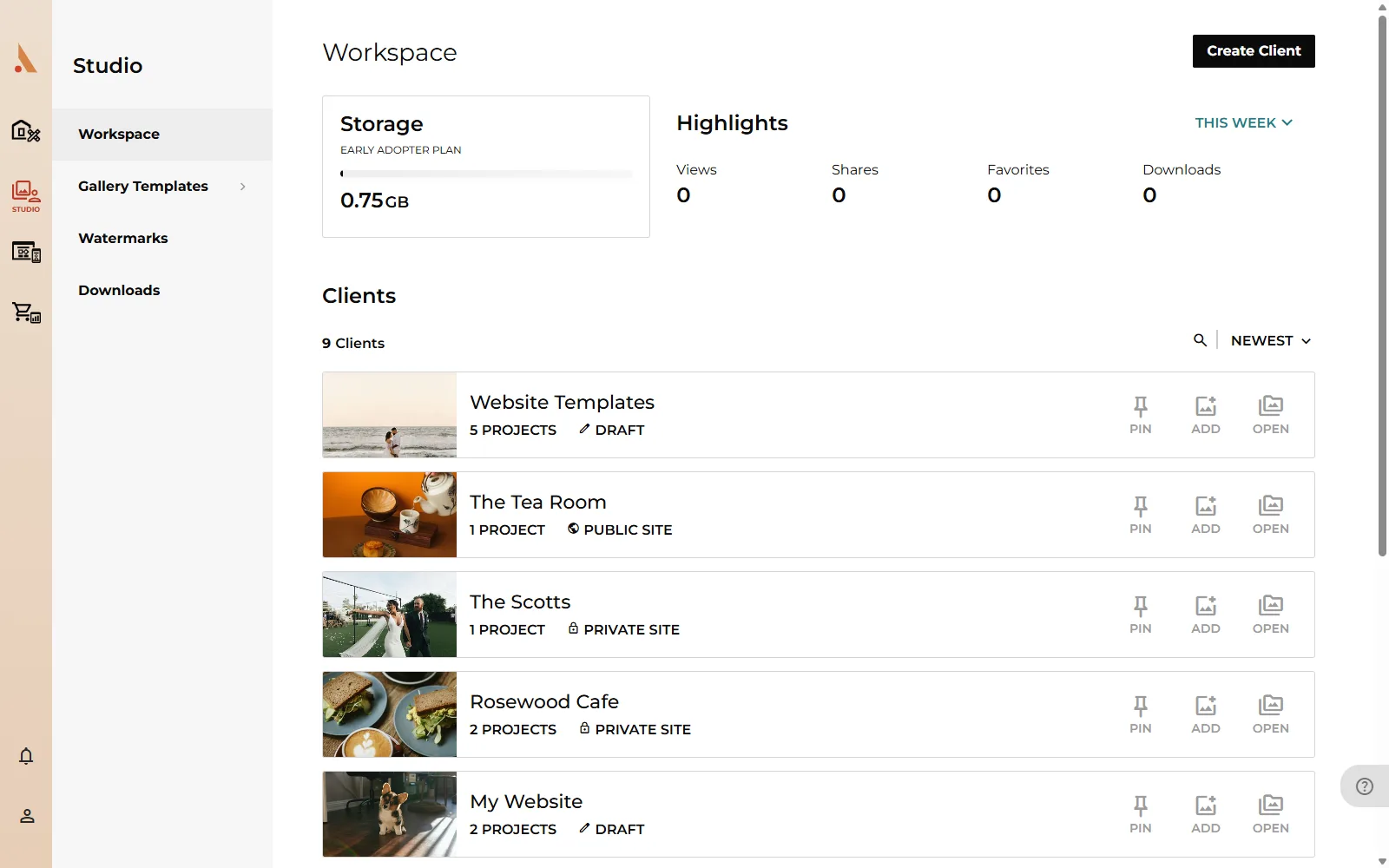
A client is a person or business you shoot for. The Studio section opens on your Workspace, which lists every client you've created. Click Create Client to add one.
Each client gets their own gallery website. When you share access, you share it at the client level: your client signs in once and sees everything you've published for them. Sharing, orders and settings all live on the client, too. Open a client and you'll find Projects, Client Page, Orders, Sharing and Settings.
Projects
A project groups the photos from one shoot or event: a wedding, a portrait session, a product shoot. Open a client and click Create Project to add one. A client can hold as many projects as you like, and each project has its own gallery design and settings.
Photos are always uploaded into projects within a client. If you start an upload from the Workspace, Afterify asks you to pick (or create) the client and project first.
Collections
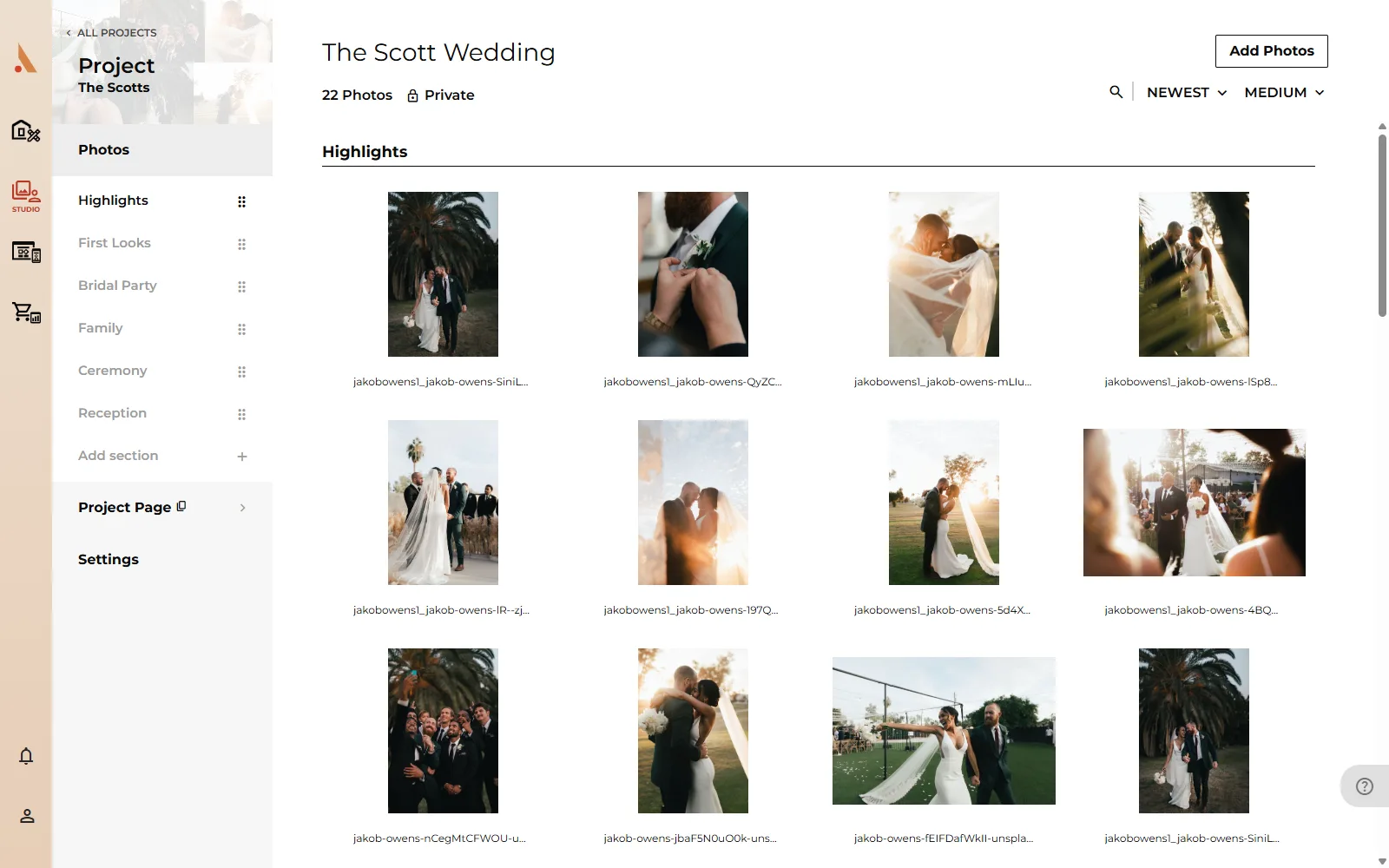
Inside a project, photos are organized into collections: named sections of the gallery like "Ceremony", "Reception" or "Highlights". Collections control how the gallery is grouped for your client, and you can reorder them to change the flow of the page.
Photos
Photos are the individual images you upload. Each photo belongs to one collection, and can carry extras like labels, a focal point and a watermark. See Labels and focal points.
How galleries map onto this
Your galleries are generated from the same hierarchy:
- The client gallery is the client's home page, listing their projects.
- Each project gallery shows that project's photos, grouped by collection.
- Both are styled with gallery designs. You can design each one individually (the Client Page tab on a client, or the Project Page tab on a project) or start from a reusable template under Studio → Gallery Templates.
So when your client opens their invite, they land on their client gallery, pick a project, and browse the photos collection by collection, exactly mirroring how you organized things in Studio.
Related
Still stuck?
We're happy to help. Contact support and we'll get back to you as soon as we can.